




If you are a freelancer or remote worker earning in USD, you have already done the hard part. You opened your IBKR account, funded it through Elevate Pay using Plaid, and bought your first U.S. stocks. Now Interactive Brokers has added something that makes managing those investments much easier.
You can now connect an AI tool like ChatGPT, Grok, or Claude directly to your IBKR account. Once connected, you can ask plain-language questions about your portfolio, get instant analysis, and even have the AI draft trade orders for you to review. We tested this ourselves using Claude, and it worked impressively well. This guide walks you through exactly how to set it up.
What This Connection Does
Before you connect, it helps to know what you are turning on. The IBKR AI connection gives the AI two kinds of access:
Read access
The AI can see your portfolio, positions, balances, performance, and trade history, and answer questions about them.
Draft-order access
You can ask the AI to prepare buy or sell orders. These are called Instructions, and they are not live orders. Nothing reaches the market until you open IBKR yourself, review the order, and submit it.
In short, the AI can look and suggest, but only you can pull the trigger. We will come back to this safety point, because it matters.
We Tried It With Claude
To see how well it works in practice, our team connected Claude to a live IBKR account. Within seconds it pulled the full portfolio and built a clean visual dashboard straight from the real account data.
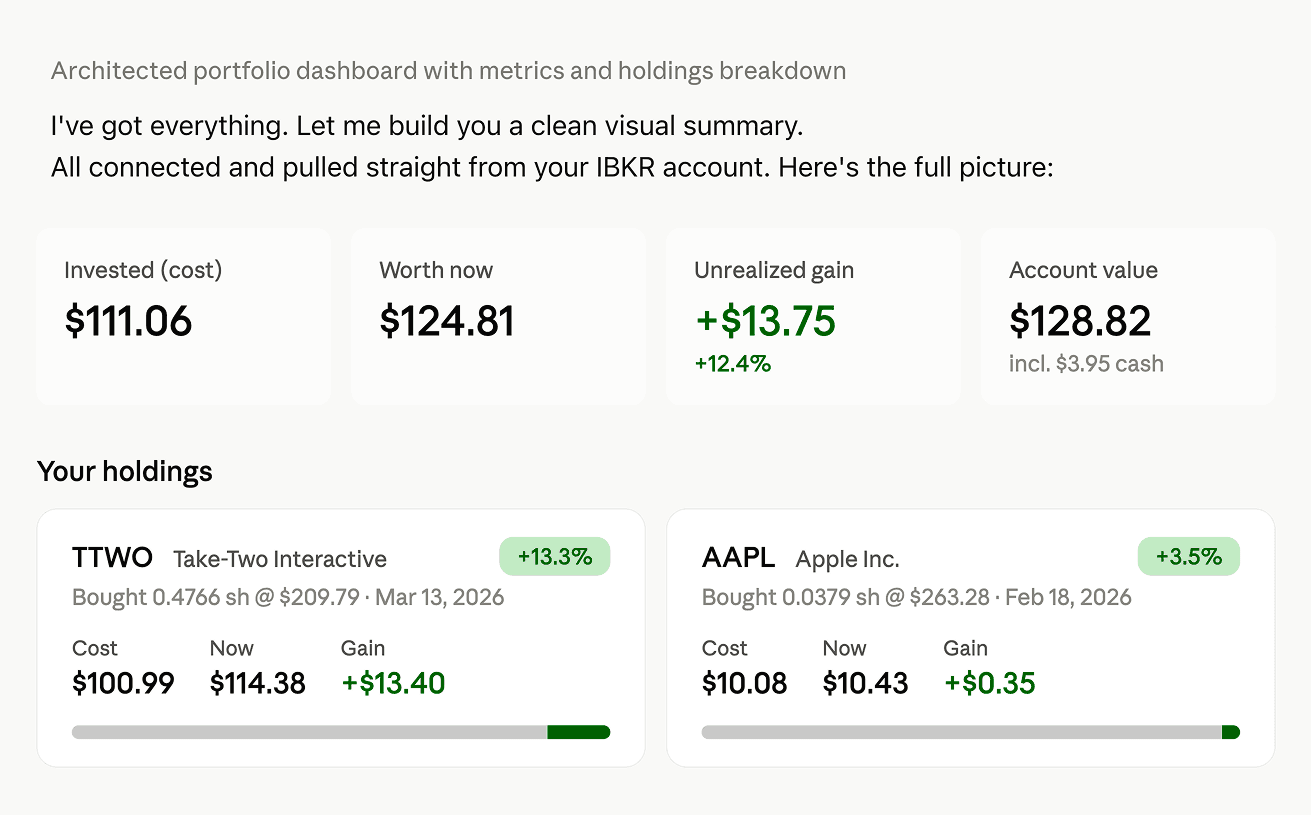
Claude pulled the account data and generated this summary instantly: total invested, current value, unrealized gain, and a breakdown of each holding.
No spreadsheets, no manual entry. We simply asked, and it produced a full picture of cost basis, current value, unrealized gains, and per-position performance. For anyone who has tried to track returns by hand, this alone is a big time saver.
How to Connect in 5 Steps
Step 1: Open Your AI Tool
Open ChatGPT, Grok, or Claude. Gemini support is coming soon.
Step 2: Find Interactive Brokers in the Connector Marketplace
Go to the connector or app marketplace inside your AI tool and search for Interactive Brokers. Select it to begin connecting.
Step 3: Review and Approve the Connection
You will be taken to an IBKR consent screen that explains exactly what you are agreeing to. This is the most important screen, so read it carefully.
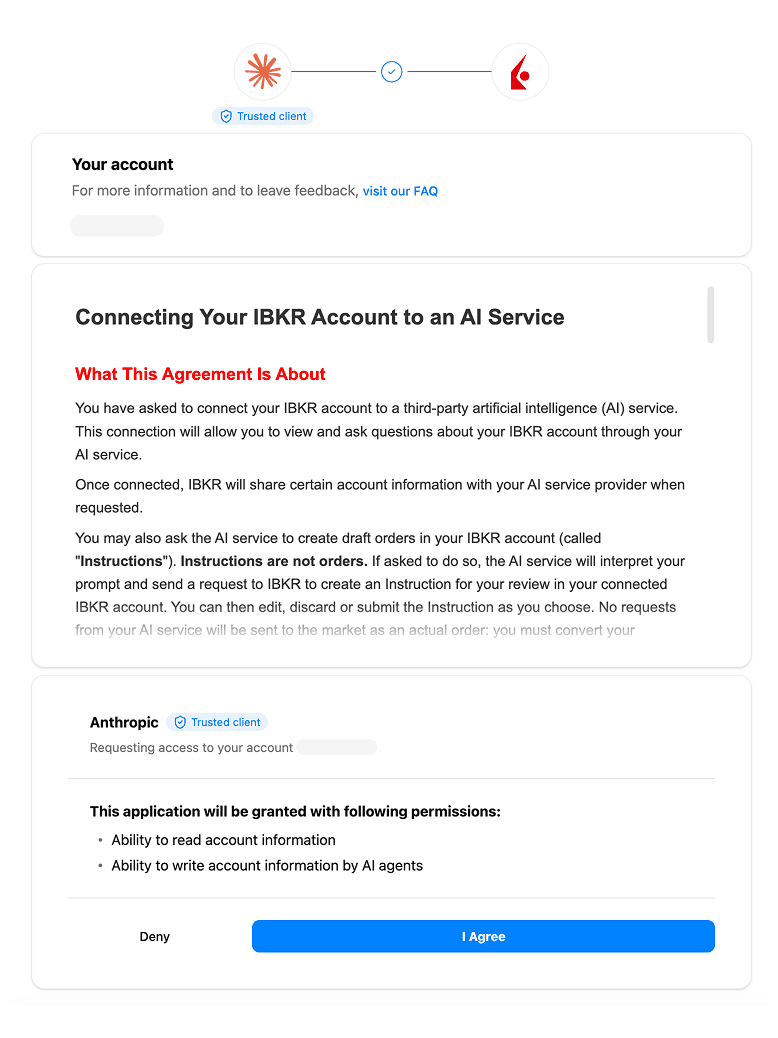
The IBKR authorization screen clearly lists the permissions you are granting before anything is connected.
Here you will see the AI service requesting two permissions: the ability to read your account information, and the ability to write account information, which simply means drafting orders for your review. Reading the agreement, a few things are worth noting:
IBKR shares only your portfolio and trading data, and only when the AI asks for it. It does not share personal details like your name, username, account number, address, government ID, employment, or income information.
Any orders the AI creates are drafts only. You must approve and submit them yourself on the IBKR platform.
You can disconnect the AI at any time from your IBKR account settings.
If you are comfortable with this, click I Agree.
Step 4: Log In With Your IBKR Credentials
Sign in with your IBKR username and password to authorize the connection. Your login is handled by IBKR, not stored by the AI provider.
Step 5: Start Asking Questions
That is it. You can now ask things like:
"How is my portfolio doing this month?"
"What percentage of my money is in my top 3 positions?"
"Find me low-cost ETFs that track the S&P 500."
"Draft a sell order for half of my Apple position." (You will review and submit it yourself.)
Setup takes only a few minutes. There are no API keys, no separate account, and no extra cost.
A Few Things to Know Before You Connect
The connection is convenient, but it is worth understanding the trade-offs:
Your data leaves IBKR
Once the AI provider receives your portfolio data, they control it under their own terms, and they may use it to improve their models. Read your AI service's privacy policy before connecting.
AI can be wrong
Even with correct data, an AI can misread a number or give an outdated answer. Always double-check before acting.
You are always in control
The AI cannot move money, cannot trade on its own, and cannot touch anything outside your IBKR account. Every order runs through your approval on IBKR.
Ready to Start?
If you have not set up your IBKR account yet, start with our guides on opening an account from Bangladesh or Pakistan, then learn how to fund it with Elevate Pay using Plaid. Once your account is funded and you have bought your first stocks, connecting an AI assistant is the natural next step to managing it all smarter.
Disclaimer: This article is for informational purposes only and does not constitute financial advice. All investments involve risk, including the potential loss of principal. Please conduct your own research before making investment decisions.


Recent Articles

DO MORE WITH ELEVATE PAY
Transfer money with Elevate Pay with low fees and competitive FX rates. Our users love us for transparency, security and more.