How to Transfer Funds From Upwork to Elevate Pay

Mesan Ali
Every freelancer aims for a smooth and inexpensive payment method to save their hard earned money. However, the options are limited for Upwork freelancers in emerging markets like Pakistan and Bangladesh. Withdrawals from the freelance platform to digital payment methods and local banks can be very costly. Most Upwork payout methods are either too costly or not available in emerging markets. But, Elevate Pay can change that for you.
In this article, we talk about setting up and using Elevate Pay as your withdrawal method in Upwork. Elevate Pay gives you a US-based USD bank account, which you add to Upwork as a Direct to U.S. Bank withdrawal method.
What changed recently
Upwork has moved two goalposts since we first published this guide. Withdrawal settings are no longer nested under Settings › Get Paid. They now sit in their own Withdrawals section. And from September 1, 2026, Upwork charges $2.99 per Direct to U.S. Bank withdrawal if your tax address is outside the United States. Both changes are covered below.
Setting Up Elevate Pay as Your Withdrawal Method In Upwork
Here’s a step by step guide on how to set up Elevate Pay as your withdrawal method in Upwork.
Start by logging in to your Upwork account.
Once you login, you will see your profile icon in the top right corner of the screen. Click on the icon and you will see a menu pop out as shown in the image below:
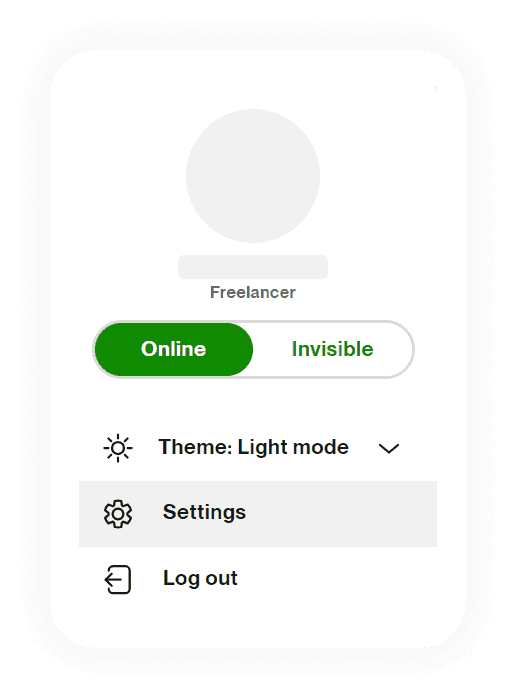
Here, click ‘Settings’ and it will lead you to the settings page. Some desktop layouts label this ‘Account settings’.
The left hand side of your screen on the settings page will contain all settings options. Under User Settings, click Withdrawals.
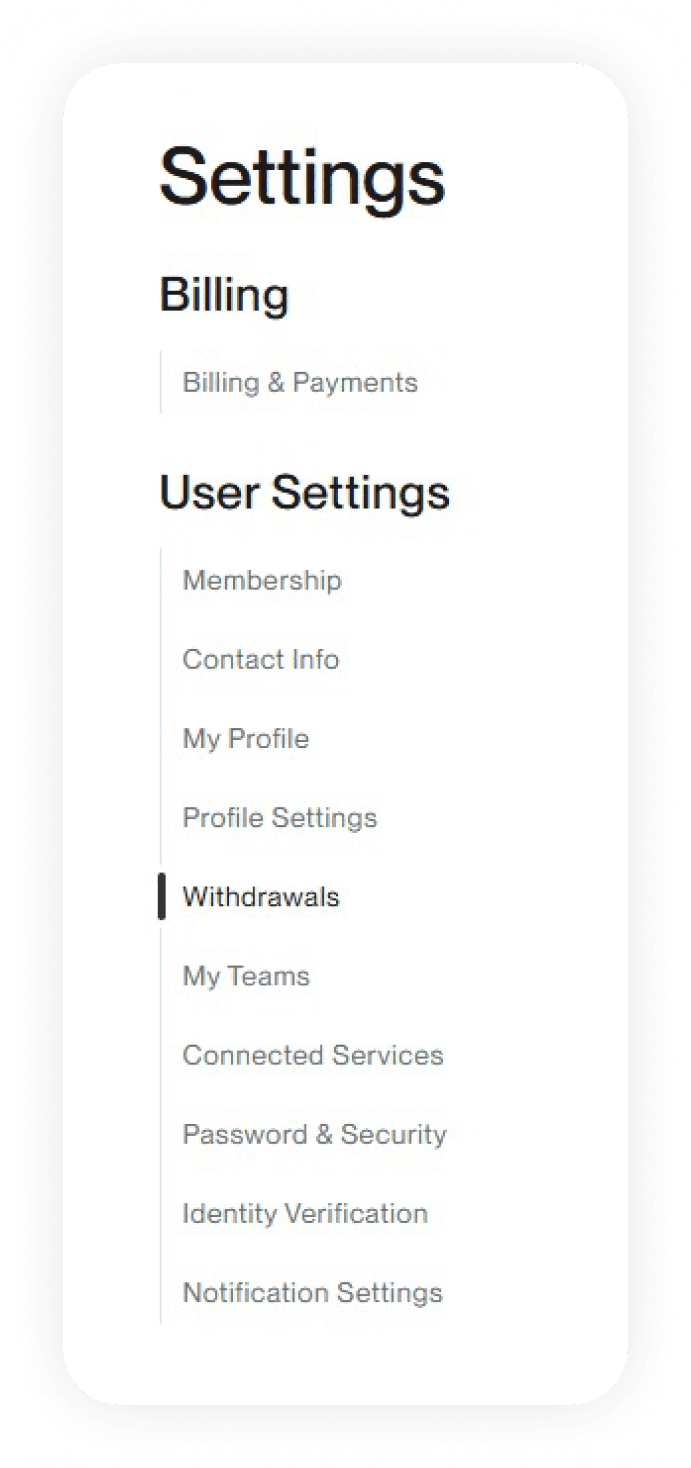
This is the part that changed. Upwork used to keep these options under User Settings › Get Paid. They now live in their own Withdrawals section. If you’d rather skip the clicking, you can go straight to upwork.com/disbursement-methods.
Your Withdrawals page opens on the right hand side of the screen and looks like this:
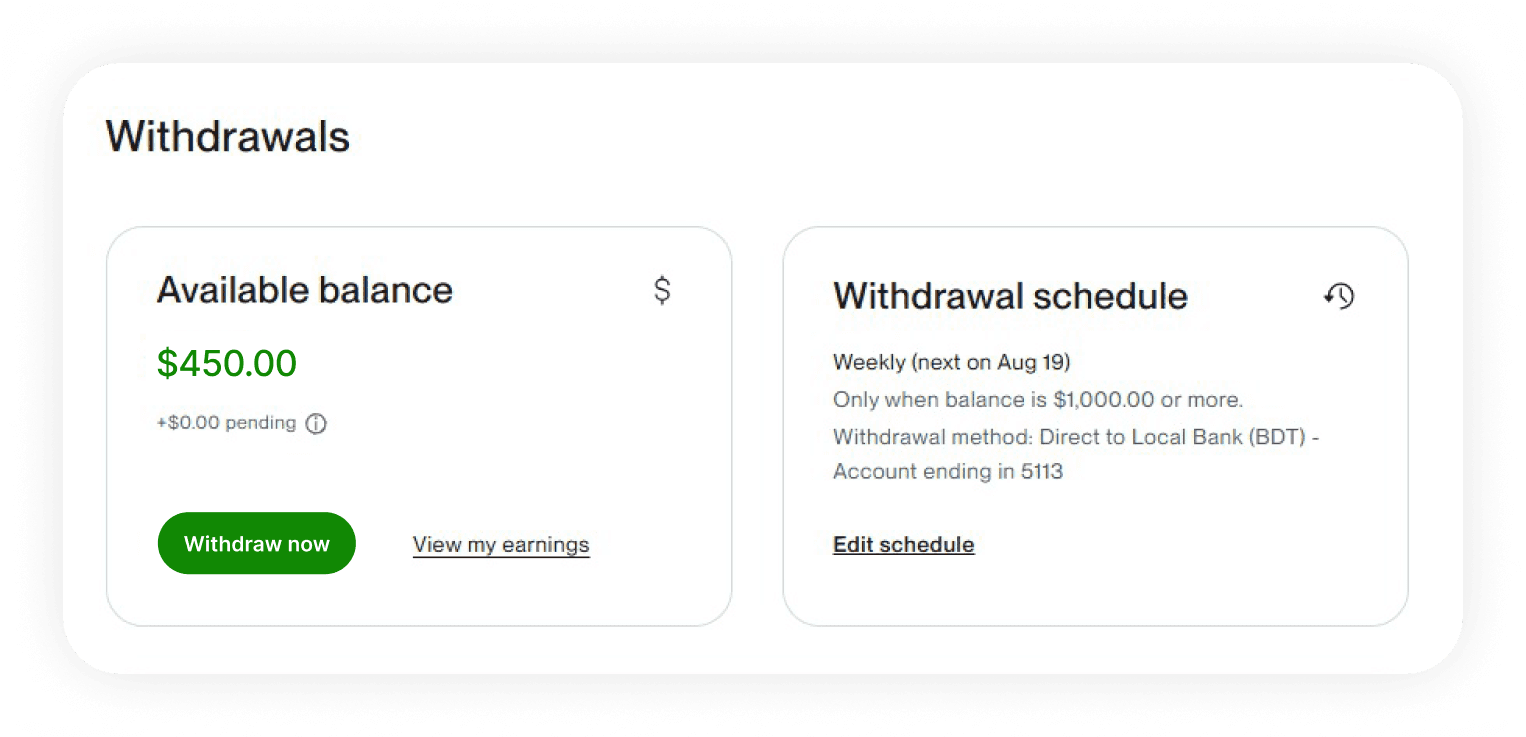
Scroll down to the Withdrawal methods section and click the green ‘Add a method’ button. If you have not set up any method yet, Upwork prompts you to add one as soon as the page loads.
The following menu will pop-up listing all the withdrawal methods that you can use with Upwork.
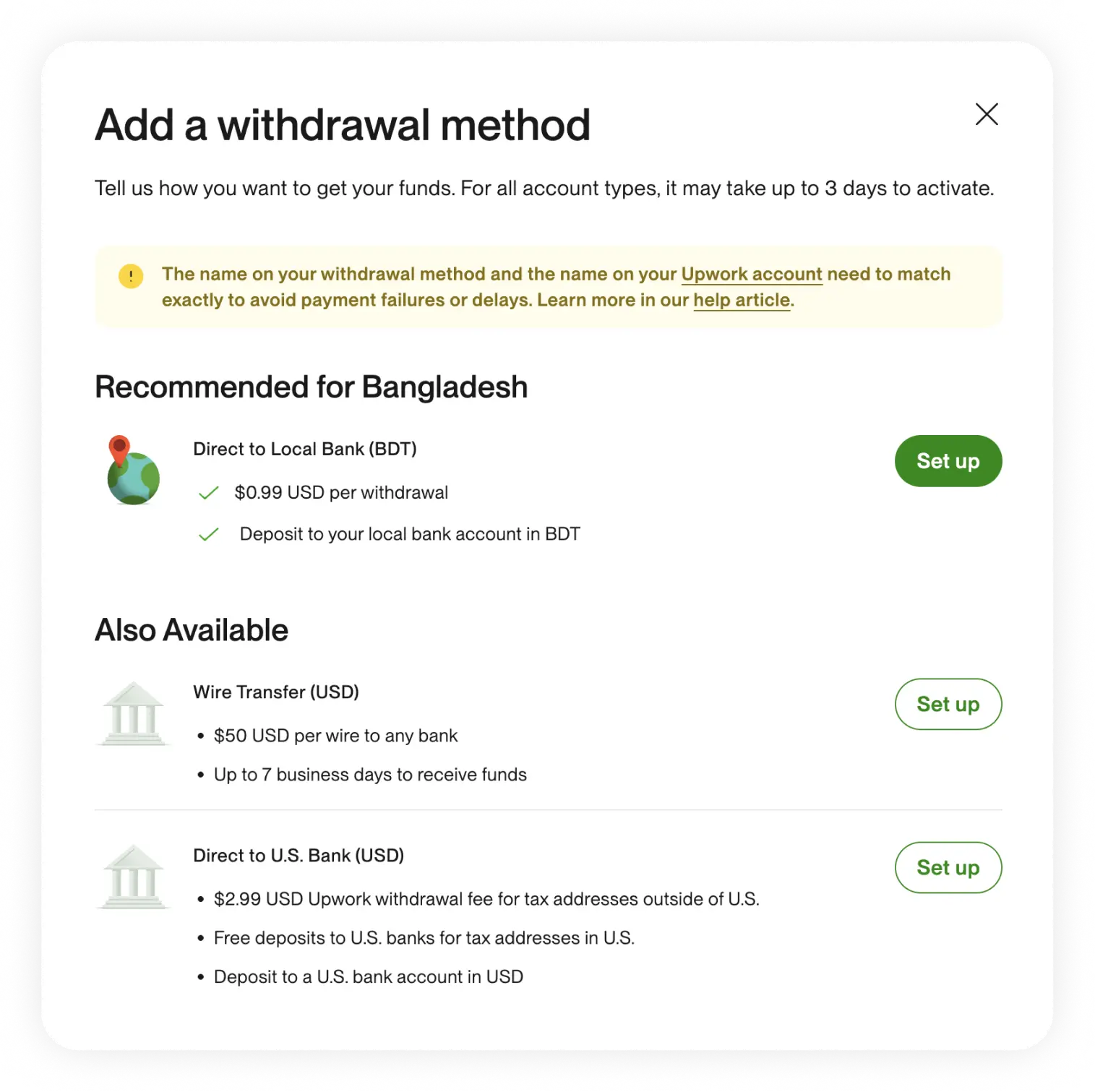
Click on ‘Set up’ in front of Direct to U.S. Bank (USD).
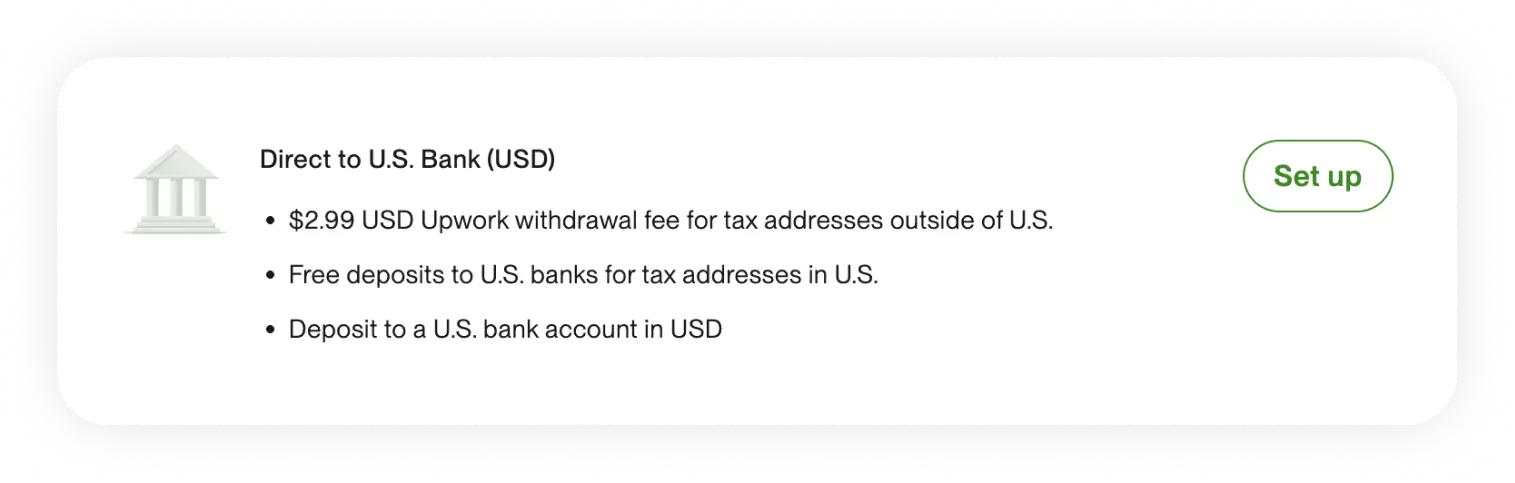
Here you can see multiple withdrawal options that you can set up. Direct to Local Bank costs $0.99 per withdrawal, Payoneer $2, and a wire transfer a painful $50. Direct to U.S. Bank is free if your tax address is in the United States, and $2.99 per withdrawal from September 1, 2026 if it isn’t. With the help of Elevate Pay, you can use this option from anywhere.
Even though Upwork shows some options as ‘Recommended for Pakistan’, they are not always the low-cost options that you are looking for. The headline fee is only half the story. Direct to Local Bank hands your dollars to Upwork’s banking partner to convert into PKR or BDT, and the exchange rate markup on that conversion usually costs you far more than the $0.99 you see on screen.
You will now see the screen to add your account details, which looks like this:
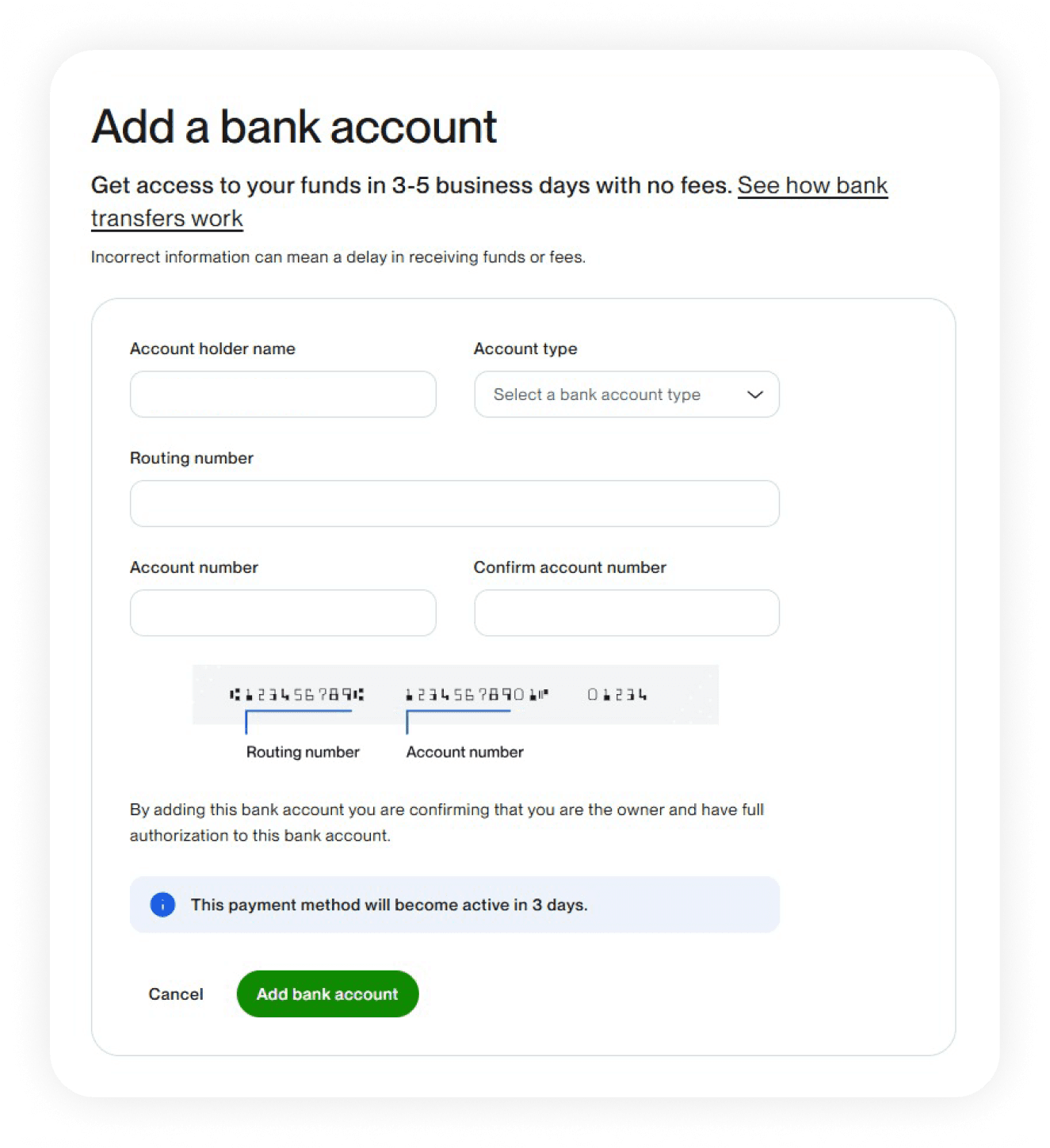
Enter your Elevate Pay account details in this section to start using Elevate Pay as your withdrawal method in Upwork. You’ll find the account holder name, account type, routing number, and account number in your Elevate Pay app.
Name matching matters
The account holder name has to match your verified name on Upwork exactly, including middle names and any special characters. Upwork flags mismatches, and a flagged method can hold up your withdrawal until support clears it.
Choose your withdrawal schedule and click Next. You can leave withdrawals on manual and move money whenever you like, or set an automatic schedule. There is more on that further down.
Once you do, it will take 3 days before your new withdrawal method is active and you can start using it. This is a security hold, and it applies every time you add a method.
You are now set to receive your Upwork earnings in USD, into a US bank account, while living outside the US.
What the September 1, 2026 Fee Change Means for You
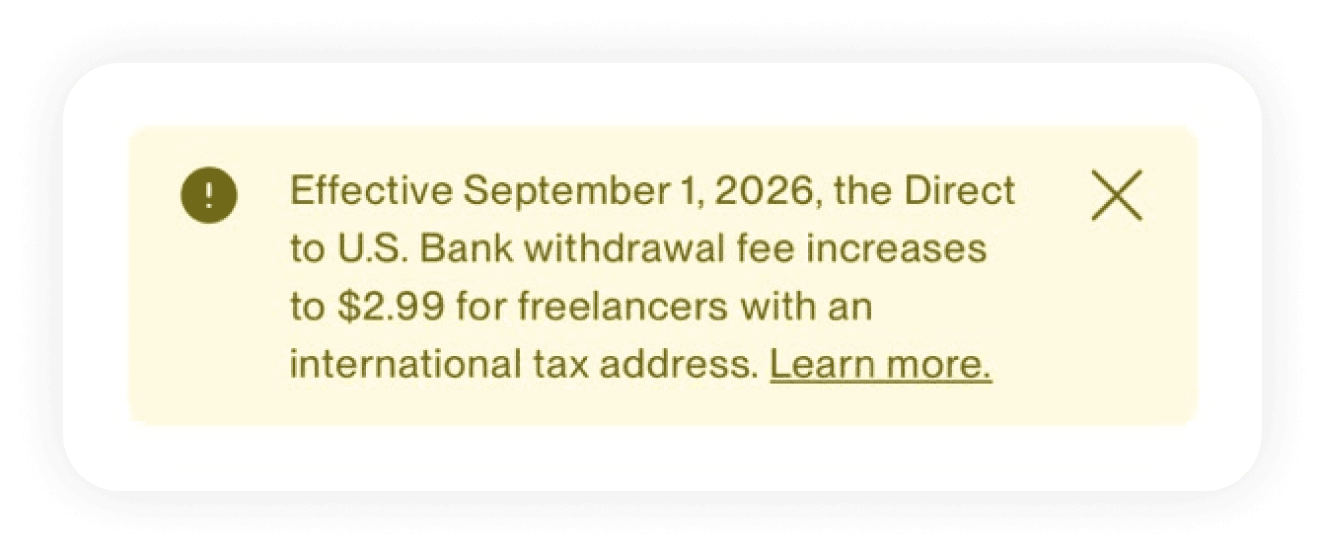
Until now, Direct to U.S. Bank was the one withdrawal method on Upwork with no fee attached. From September 1, 2026, that stays true only for freelancers with a US tax address. Everyone else pays $2.99 per withdrawal. Any withdrawal scheduled to execute before September 1, 2026 is still processed free of charge.
It’s an unwelcome change, but it moves the maths less than the headline suggests, for two reasons.
First, $2.99 is a flat fee, not a percentage. Withdraw $200 and it costs you roughly 1.5%. Withdraw $2,000 and it costs you 0.15%. The fee shrinks as your withdrawal grows, which is the opposite of how currency conversion markups behave.
Second, the alternative was never free either. Direct to Local Bank charges $0.99 and then converts your USD into PKR or BDT at Upwork’s rate. That conversion spread is typically one to two percent, or somewhere around $20 to $40 on a $2,000 withdrawal, and it never appears as a line item on your receipt. Going Direct to U.S. Bank into Elevate Pay keeps your money in dollars until you decide to convert it.
Transfer Funds From Upwork to Elevate Pay
Once you have set up Elevate Pay as your withdrawal method, moving funds to your account works the same way as it does for any other method.
The frequency of your withdrawal can also depend on the type of Upwork contract you are working on.
Hourly contracts bill weekly, Monday through Sunday, and those earnings become available ten days later, on the following Wednesday. Fixed price contracts, Project Catalog orders, and bonus payments each go through a five-day security period after the client approves and pays before the funds clear. You can use Elevate Pay with any type of Upwork contract.
Now that you have set up Elevate Pay as your withdrawal method, let’s see how you can withdraw your funds to it.
Step by Step Guide to Withdraw Funds From Upwork
Start by logging in to your Upwork account.
Go to Manage finances › Withdraw earnings. The same button also appears on your Financial overview, on your Transactions page, under Settings › Withdrawals, and in the sidebar of your Find work page.
Click ‘Withdraw now’.
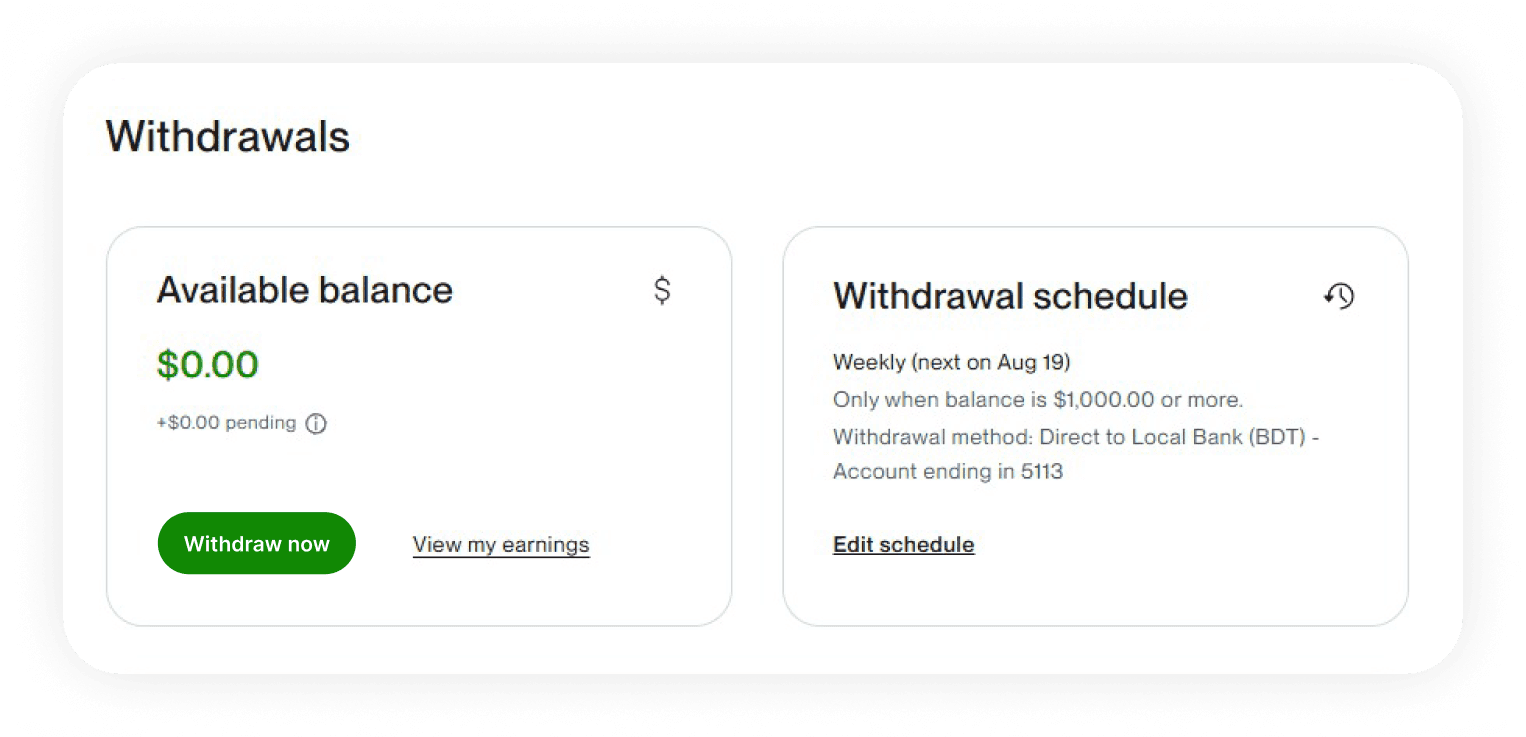
Once you have funds in your Upwork account, clicking ‘Withdraw now’ will initiate the transfer from Upwork to your added withdrawal method. Upwork will then send you a notification email sharing all the details of the transaction, including the amount that will be reflected in your account.
Upwork renamed this button
What used to read ‘Get Paid Now’ is now ‘Withdraw now’. Same action, new label.
However, completing this process manually is not always necessary, as you can also set up an automatic withdrawal schedule in Upwork. Your current schedule sits on the right hand side of the same page, along with an ‘Edit schedule’ link.
Depending on the schedule you choose, Upwork transfers your funds to your withdrawal method accordingly. You can opt for weekly (every Wednesday), twice per month (the 1st and 3rd Wednesday), monthly (the last Wednesday of the month), or quarterly (the last Monday of each quarter). You can further filter these withdrawals by setting a minimum withdrawal amount, and by leaving behind a reserve balance of up to $250 for buying Upwork Connects or covering your membership fee.
Two more things worth knowing. If any funds have been sitting in your Upwork account for 180 days, Upwork withdraws them automatically regardless of your schedule or minimum. And once a withdrawal has started, it cannot be cancelled or reversed, so check your details before you confirm.
Upwork helps you set up automatic withdrawals to save you time. Pair that with Elevate Pay to keep your earnings in USD and convert them on your own terms.
Benefits of Using Elevate Pay As Your Upwork Payment Method
You can benefit from using Elevate Pay as your withdrawal method in Upwork in many different ways. We have listed some of these for you:
No Deposit Fee On Our Side
Elevate Pay does not charge you anything to receive your Upwork deposit. The ACH transfer lands in your USD account in full. From September 1, 2026, Upwork applies its own $2.99 withdrawal fee if your tax address is outside the US, but that fee belongs to Upwork, and it stays the same flat amount no matter how much you move.
Access to a Virtual US Bank Account
Elevate Pay provides a virtual US bank account, even if you’re in a country where services like PayPal and Stripe are not available.
This streamlines the process of receiving payments and eliminates the need for traditional bank accounts.
Cost Savings
Elevate Pay offers competitive rates compared to other services like Payoneer.
You can save on withdrawal fees and currency conversion costs.
You hold your earnings in USD and choose when to convert, instead of accepting whatever rate applies on the day Upwork pays out.
Secure and Sustainable
Your full payment amount reflects in your Elevate Pay account without deductions on our side.
Elevate Pay offers a seamless solution for freelancers worldwide, especially those in emerging markets who previously lacked access to US bank accounts. By eliminating intermediary fees and providing better exchange rates, Elevate Pay helps you keep more of your hard-earned money.
Start using Elevate Pay as your Upwork withdrawal method and make use of all these benefits. You can sign up with Elevate Pay on iOS or Android and experience a new realm of freelance payments.