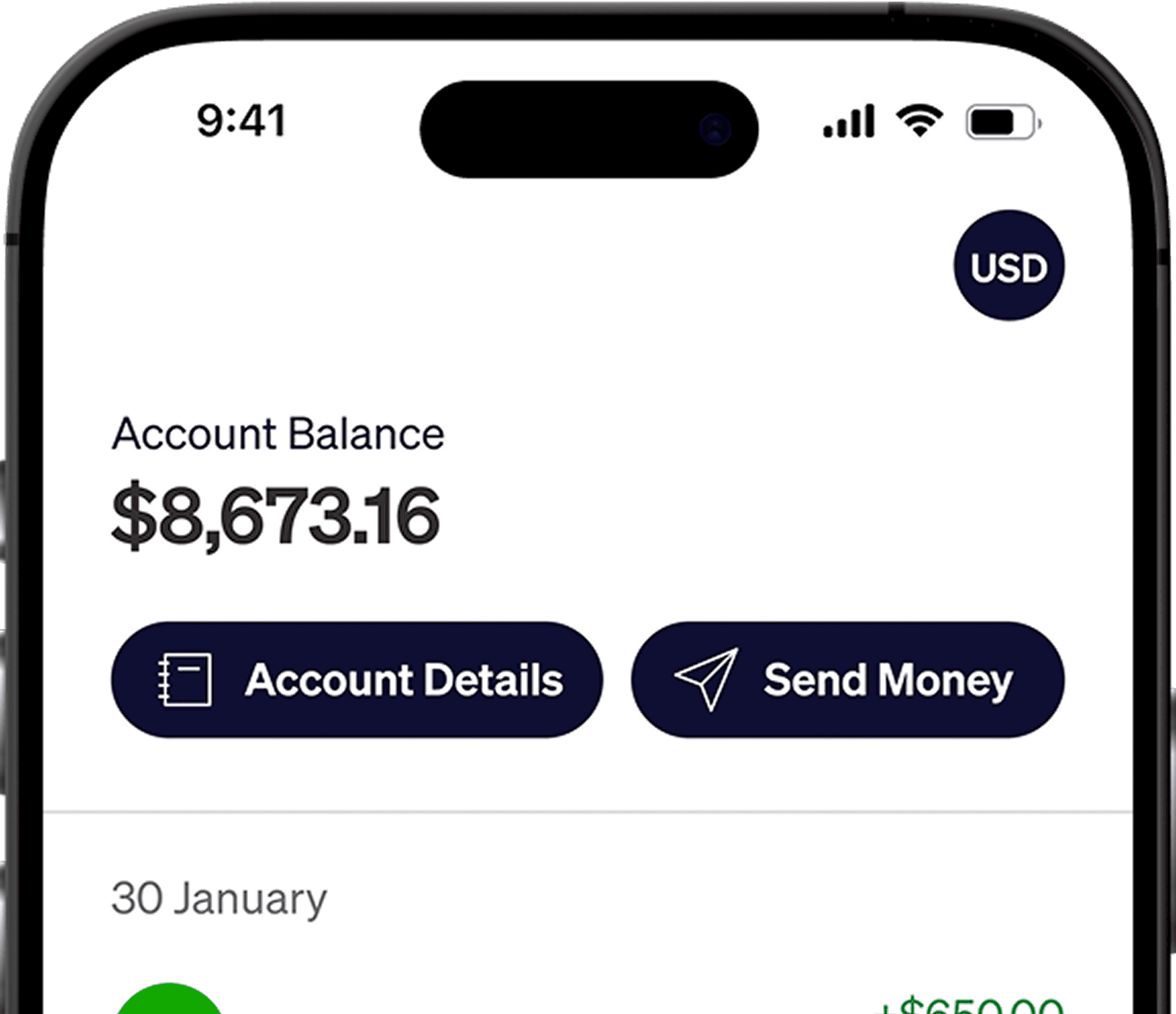




As a global freelancer or remote worker, whether you’re finalizing a design or closing a consulting deal, getting paid should be the simplest part of your work. Traditional platforms like Payoneer have long been the default for receiving international payments, but how you withdraw those funds is what truly determines how much of your earnings you keep.
Why Re-Evaluate Payoneer as Your Withdrawal Method?
For many freelancers and remote workers in emerging markets like Bangladesh and Pakistan, Payoneer has been a reliable bridge to the global market. It gets the job done and connects you to clients worldwide. However, as your freelance business scales, the nuances of exchange rates and withdrawal fees start to make a massive difference in your actual take home pay. Routing your hard-earned funds to an Elevate Pay USD account is a strategic way to keep more of what you earn.
The Elevate Pay Advantage: A Side-by-Side Look
Let us look at why linking your accounts is a smart financial move.
Predictable, Low Fees: Traditional payment gateways often utilize percentage-based fees that scale up as you earn more. Elevate Pay takes a different approach by charging a simple flat $1.50 USD fee for withdrawals.
Better FX Rates: Every cent counts when converting currencies. Elevate Pay offers highly competitive exchange rates compared to the standard margins applied by older platforms. This means your USD goes much further when converting to your local currency.
Built for Emerging Markets: While some global platforms struggle with complex onboarding or inconsistent support in emerging economies, Elevate Pay is built precisely for professionals in regions like Pakistan, Bangladesh and more. The sign-up process is tailored and straightforward, backed by a support team that understands the specific needs of these markets.
A step-by-step guide
You can directly transfer your Payoneer funds to your Elevate Pay account. We are aware that some users are currently experiencing an issue connecting US bank accounts via the Payoneer web dashboard—a problem on their end that we hope will be resolved soon. Instead, you can easily connect your Elevate Pay bank details using the Payoneer mobile app. Follow the updated steps below to get started.
Step 1: Go to Your Bank Accounts
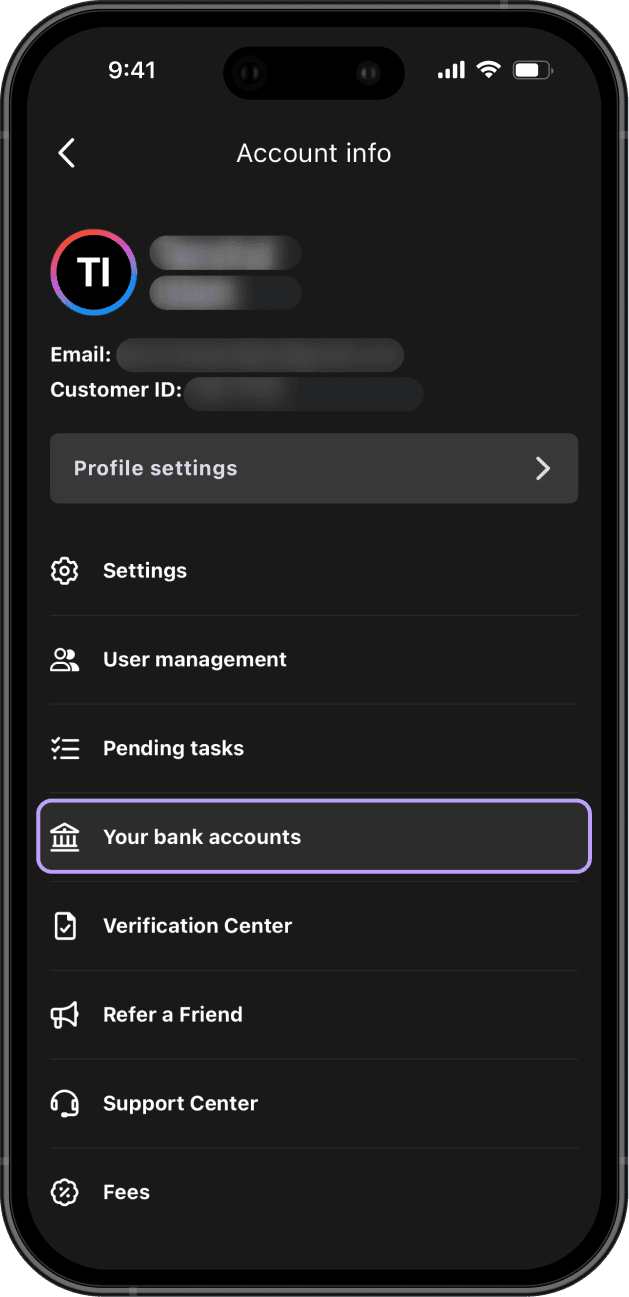
Open the Payoneer app.
Tap your profile icon.
Select Your bank accounts.
You'll see a list of your linked bank accounts.
Step 2: Add a New Bank Account
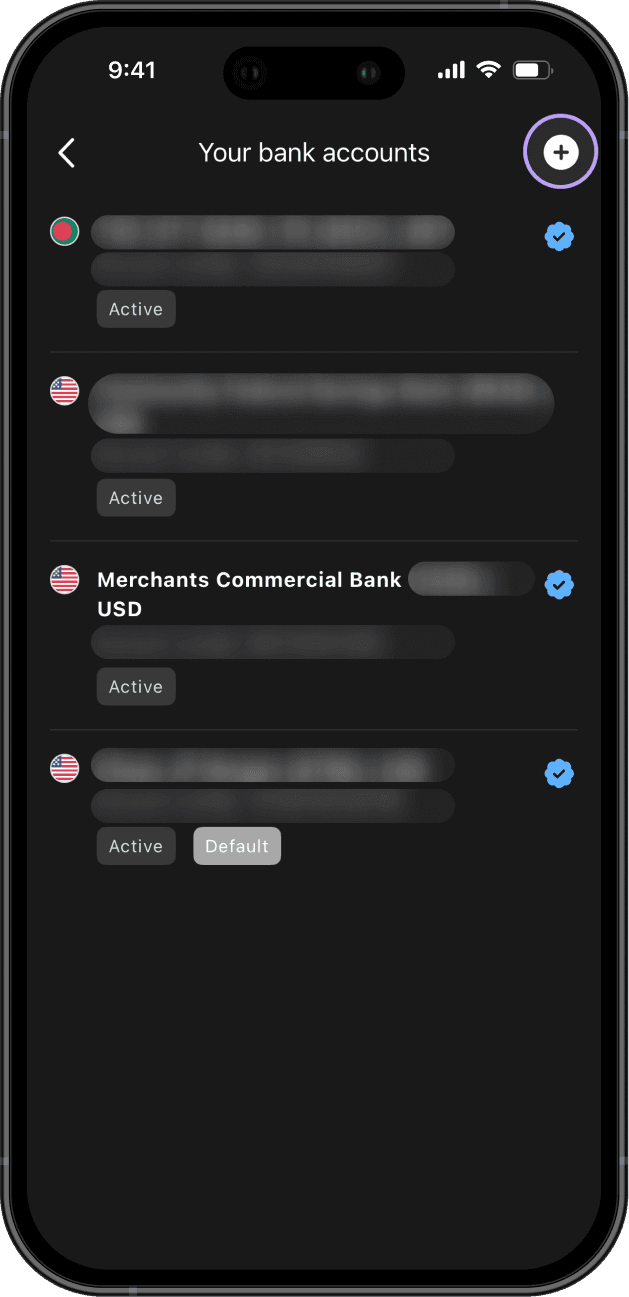
Tap the "+" (Add) button.
Select the United States of America as the bank country.
This ensures you're adding a US receiving account.
Step 3: Select Account Type and Currency
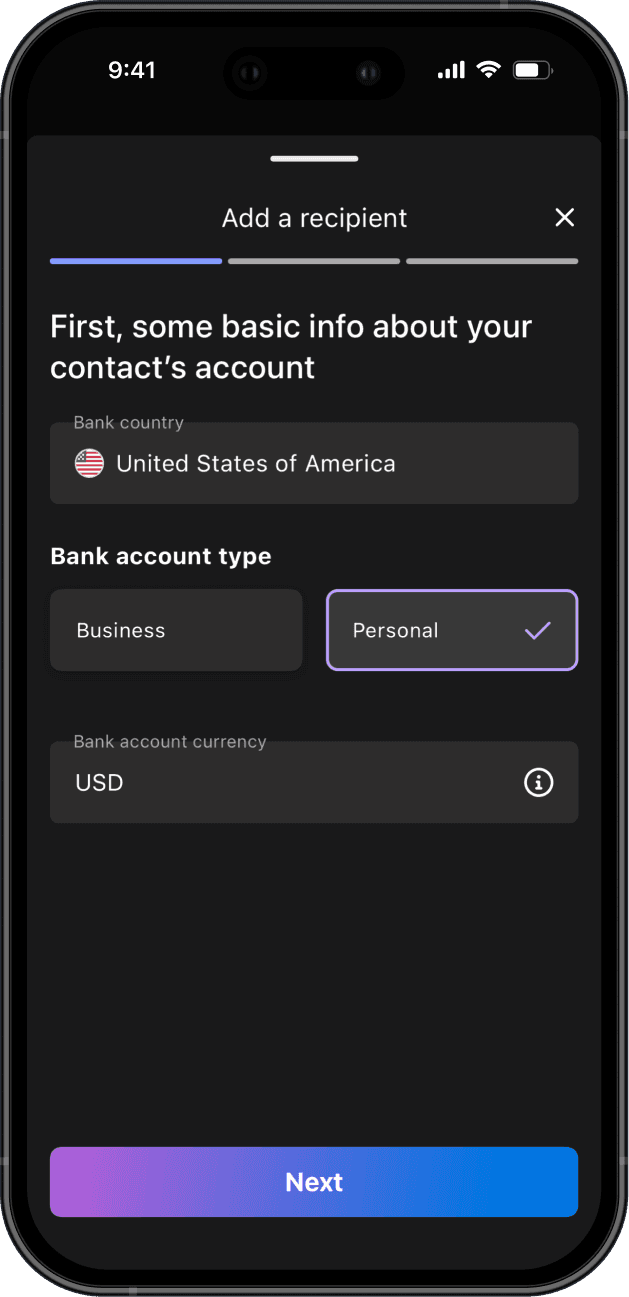
On the "Add a recipient" screen, enter:
Bank country: United States of America.
Bank account type: Personal.
Bank account currency: USD.
Then tap Next.
Step 4: Enter Your Elevate Pay Bank Details
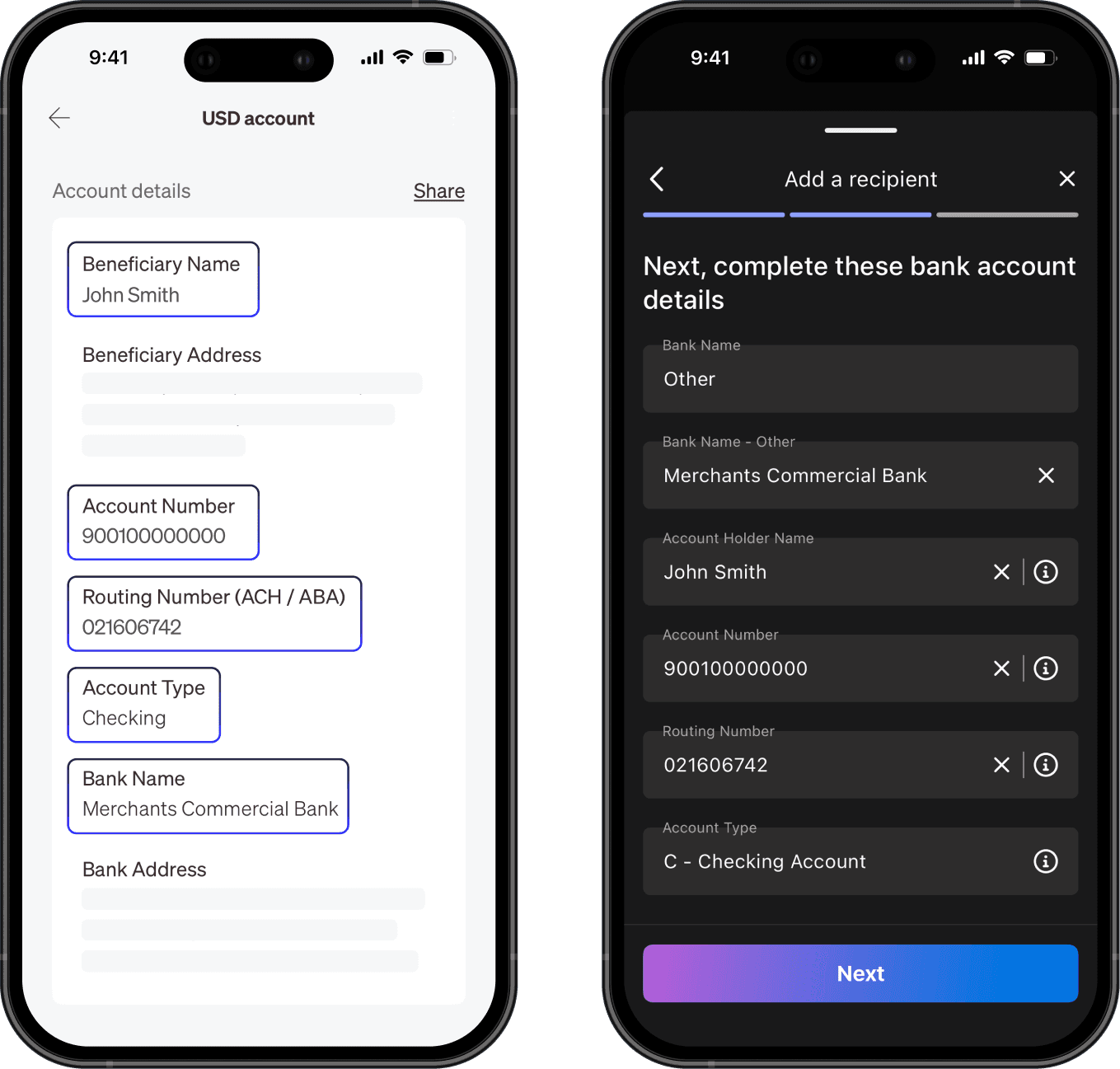
Use your Elevate Pay USD account details exactly as shown in your app.
Bank Name: Select Other.
Bank Name (Other): Merchants Commercial Bank.
Account Holder Name: Your full name (must match Elevate Pay).
Account Number: Your Elevate Pay account number.
Routing Number: Your ACH routing number.
Account Type: C- Checking Account.
Review all details carefully. Incorrect information may delay transfers. Tap Next.
Step 5: Add Account Holder Details
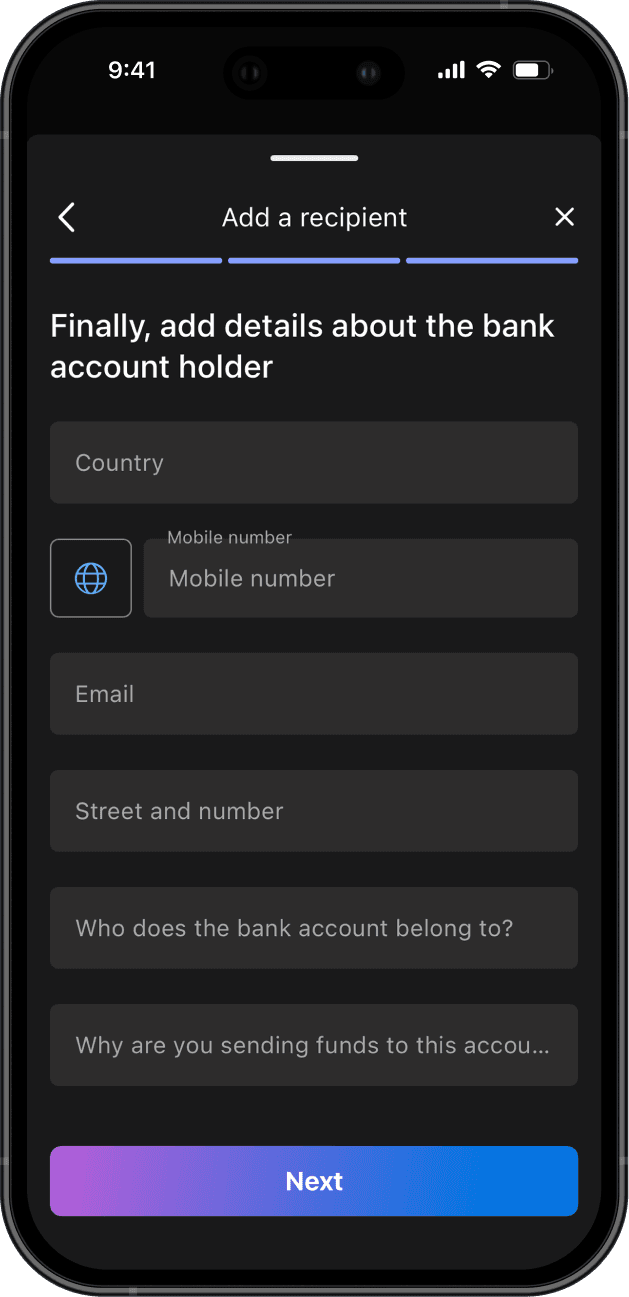
Complete the required fields:
Country.
Mobile number.
Email.
Street address.
Who the bank account belongs to.
Reason for sending funds.
Then tap Next. Submit and save the account.
What Happens Next:
Your bank account will appear under Your bank accounts. Once approved and marked Active, you can use it to withdraw funds.
For smooth processing:
Make sure your name matches exactly.
Double-check all digits before submitting.
After this setup, you won't need to re-enter the details for future transfers.


Recent Articles







DO MORE WITH ELEVATE PAY
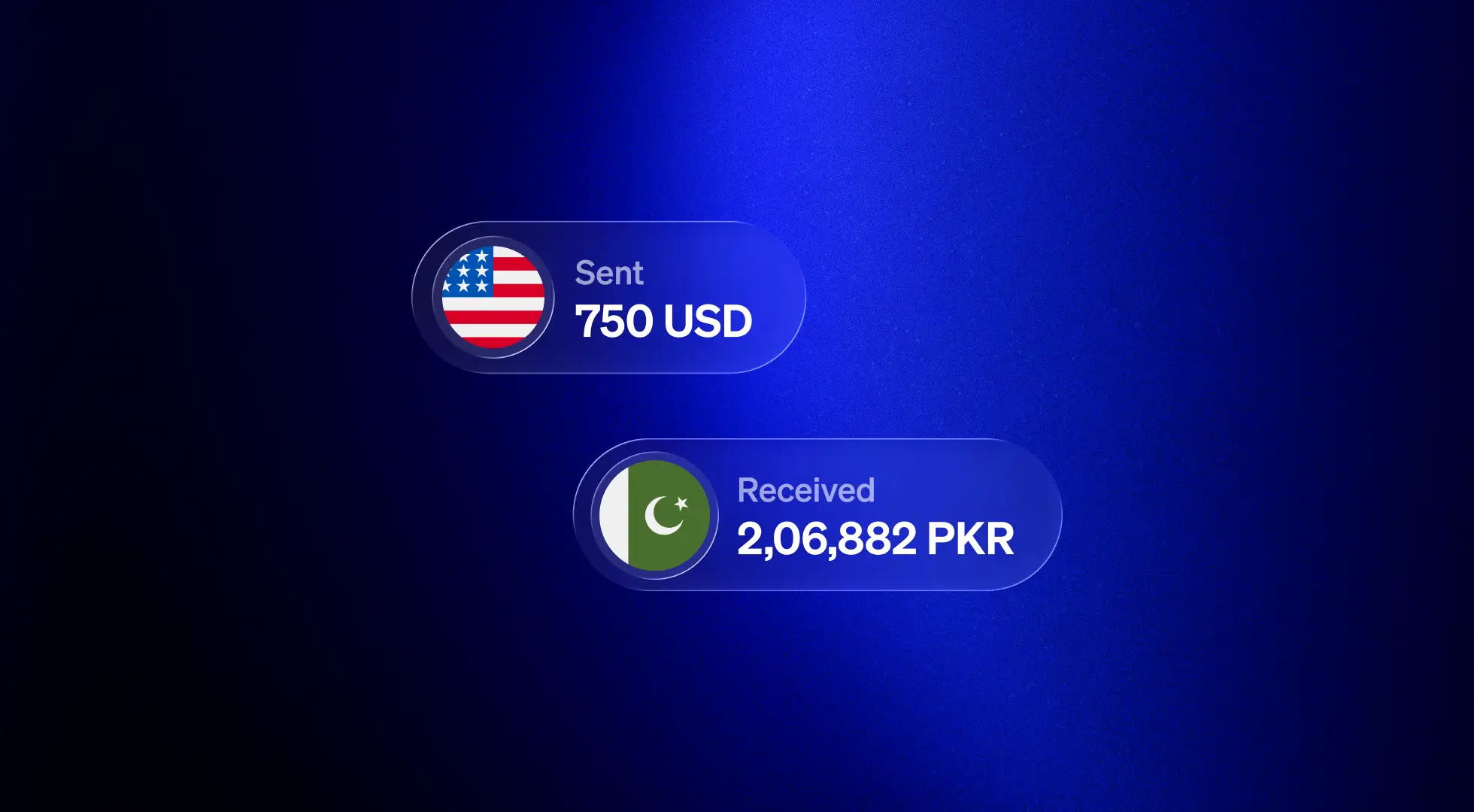
Transfer money with Elevate Pay with low fees and competitive FX rates. Our users love us for transparency, security and more.