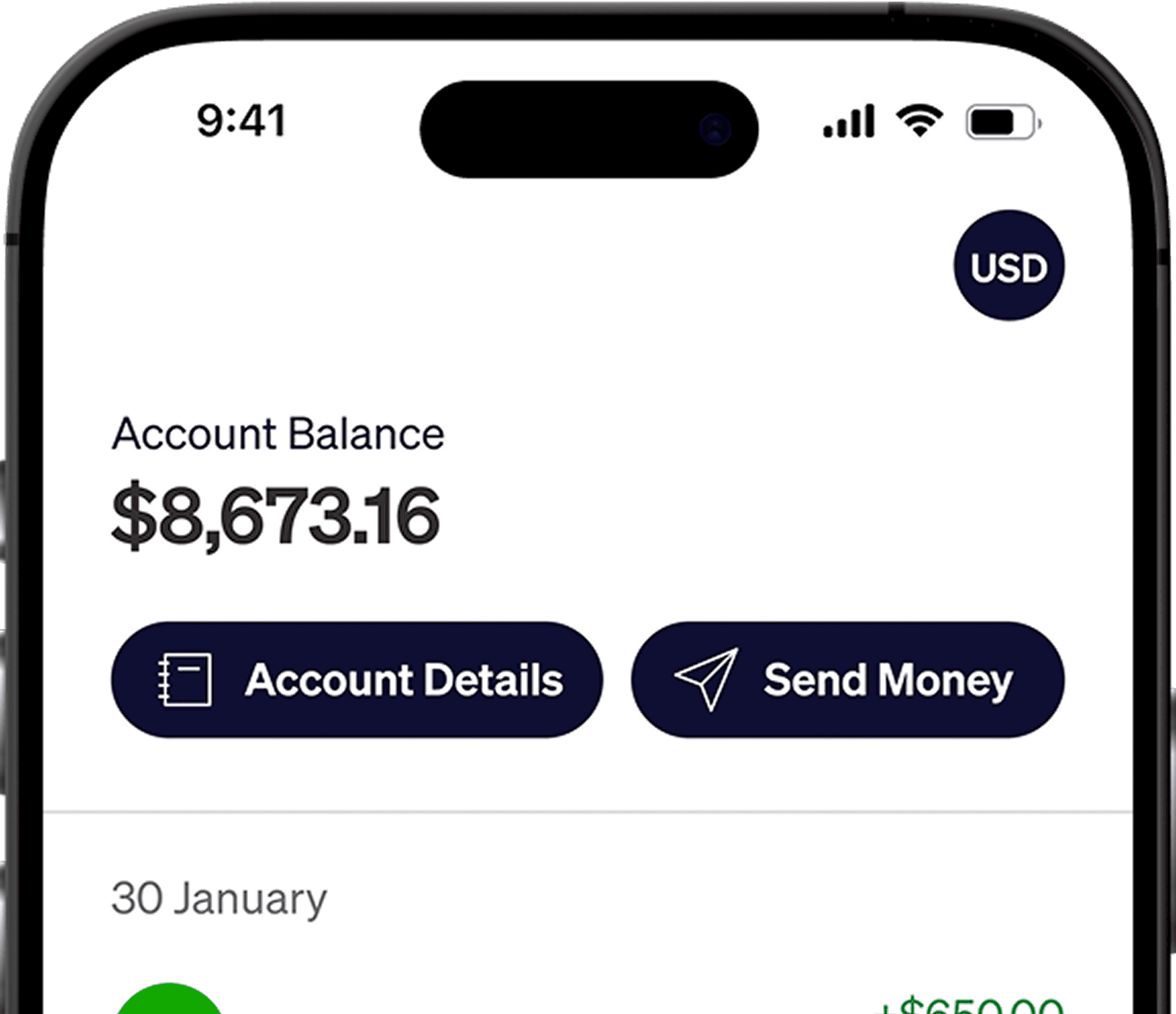




Remote.com determines the payment route from the bank details you provide. Adding your Elevate Pay account as a US bank deposit method allows eligible payments to be sent in USD through ACH instead of an international wire.
How Do Remote.com Payments Work?
Remote.com uses the payment details saved in your profile to determine how a payment is sent. When the platform accepts US bank details, your account can be used for an ACH payment.
Remote.com Payment Methods for Contractors and Employees
US bank deposit: Provide the ACH routing number and account number shown in the app so USD payments can arrive through ACH.
Local bank payout: Receive the payment in your home currency after conversion.
International USD wire: Receive dollars in a foreign-currency account at a local bank, with possible SWIFT and correspondent-bank fees.
The options available in your profile can depend on your contract type, employer setup, and country.
Using Elevate Pay as a US Bank Account
When Remote.com asks for the bank country, select United States because we provide US bank details. This allows payments to be sent through ACH.
A domestic ACH transfer avoids the intermediary-bank deductions that can reduce an international wire by $15 to $50 before it reaches you.
ACH Versus International Wire on Remote.com
ACH uses an ACH routing number and account number and is designed for domestic US payments. It is generally lower cost and simpler for the sender.
An international wire uses SWIFT and may pass through one or more correspondent banks. Additional deductions can apply before the money reaches your account.
For a deeper comparison, see our guide to ACH versus wire transfers.
What You Need to Receive Remote.com Payments With Elevate Pay
Open the Elevate Pay app and copy the account number, ACH routing number, and account holder name shown there.
Remote.com pays the account holder name on file, so if it does not match your Elevate Pay account name exactly, the payment can bounce back or stall.
How to Add Elevate Pay to Remote.com
Sign in to Remote.com and open the section where you manage payment details.
Choose the option to add a bank account.
Copy the ACH routing number and account number from the Elevate Pay app.
Enter each field exactly as shown. If Remote.com asks for the bank country, select United States.
Check the details once more, then save the account.
Once the method is active, invoices or payroll payments can be sent to your account in dollars.
How Long Do Remote.com Payments Take?
Remote.com usually pays out within a few business days after receiving and approving the funds. Weekends, bank holidays, payroll approval, and the selected payment rail can affect the final arrival time.
Receiving Remote.com Payments in USD Versus Local Currency
Choosing local currency means the conversion happens before the payment arrives. Choosing USD keeps the money in dollars, so you decide when to exchange it. We show the rate, fee, and final local amount before you confirm a transfer.
Common Remote.com Payment Issues
The saved bank details do not match the information in the Elevate Pay app.
The name in Remote.com differs from the account holder name.
The ACH routing number and account number were placed in the wrong fields.
The employer or payroll team has not released the payment.
The payment was set up as a wire even though ACH was available.
Frequently Asked Questions
How does Remote.com pay contractors?
Remote.com pays contractors through the payment method saved in their profile. Payments can reach us through ACH when the account supports US bank details.
Can Remote.com pay in USD?
Yes. The available options depend on the contract and employer setup. Users with the USD payment option can add their account details and receive payments in dollars.
Does Remote.com use ACH?
Remote.com can use ACH for payments sent to the US bank details shown in Elevate Pay.
Which bank country should I select for Elevate Pay?
Select United States when Remote.com asks for the bank country because we provide US bank details.
What bank details does Remote.com require?
Use the account holder name, ACH routing number, and account number shown in Elevate Pay. If Remote.com asks for the bank country, select United States.
Can I change my Remote.com payment method?
You can add or update a deposit method from the relevant payment settings when your profile permissions allow it. Your employer or Remote.com support may need to help if the setting is managed centrally.
Receive Remote.com Payments in USD
Open your Elevate Pay USD account and enter the account holder name, ACH routing number, and account number exactly as shown in the app.


Recent Articles




DO MORE WITH ELEVATE PAY
Transfer money with Elevate Pay with low fees and competitive FX rates. Our users love us for transparency, security and more.