Elevate Pay is now SOC 2® Type I Compliant
✕




Your Elevate Pay Visa Signature virtual card has a separate balance that you manage in the app. Here's how to top up, pay, move money back and use your card controls.
Where to find everything
Your card lives in two places in the Elevate Pay app.

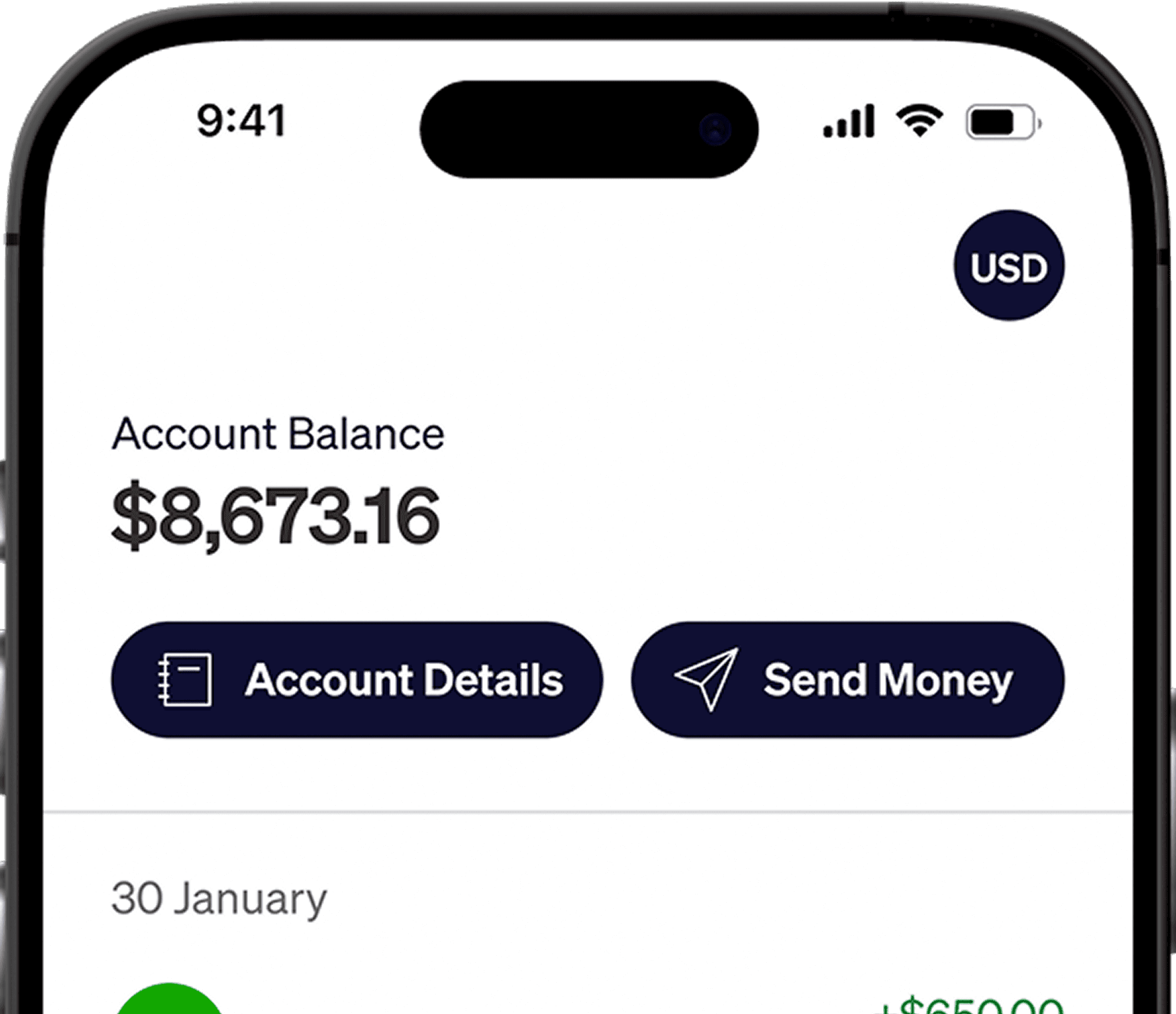
Home screen, VISA button: tap the VISA button next to USD at the top of the home screen. This is your card balance, with Top-Up Card, Withdraw and your card transactions.
Card tab: open your card from the bottom menu to view its details, lock or unlock it, check limits and see transactions.
Your card balance
Your card is a separate product from your USD deposit account. You choose how much to move from your USD account to your card before you spend. Money in your USD account is not automatically used for card payments.
Tap the VISA button at the top of your home screen to see:
Available Balance: what you can spend on your card right now.
On hold: money set aside for a payment that hasn't finished yet. It is not available to spend while it is on hold. Once the payment completes, it leaves your card. If the merchant releases it, it goes back to your available balance.
If your card's available balance doesn't cover the payment and any fees, it will be declined, even when your USD account has enough money.
How to top up your card
Top-ups from your USD balance are instant and free.
On the home screen, tap the VISA button.
Tap Top-Up Card.

Enter the amount you want to move to your card. The receive method shows Card Top-Up (USD).
Tap the arrow to continue.

Check that you’re moving money from your USD account to your card, then review the amount.
Tap Confirm.
Once the app confirms your top-up, the money is available to spend online, in apps or through Google Pay.
How to move money back to your USD account
To move money from your card's available balance back to your USD account, tap Withdraw. Transfers are instant and free.
On the home screen, tap the VISA button.
Tap Withdraw.
Enter the amount you want to move back. The receive method shows Card Withdrawal (USD).
Tap the arrow to continue.

Check that you’re moving money from your card to your USD account, then review the amount.
Tap Confirm.
The money is back in your USD account right away, where you can keep it in dollars or send it to a local bank or wallet.
How much to top up
Match your top-up amount to what you plan to spend over a set period, plus a small buffer. Since top-ups and withdrawals are instant, you can top up smaller amounts more often.
Keep enough on your card to cover purchases, subscription renewals and any fees. Merchants may retry failed payments automatically, so fix the cause before retrying or cancel an unwanted subscription with the merchant.
How to see your card details
Open your card from the bottom menu.
Tap your card to see its details.
Your card number, expiry date and CVV appear.
Only enter your card details at checkouts you trust. We will never ask you to send us your CVV or one-time codes.
How to pay
Online and in apps
At checkout, choose card payment.
Enter your card number, expiry date and CVV, and your name as it appears on your Elevate Pay account.
Enter your billing address. Use the address linked to your Elevate Pay account.
Submit the payment.
Many apps let you save your card for in-app purchases and subscriptions. For subscriptions, the service charges your card on each billing date, so keep enough on your card balance before that date.
In stores and with your phone
Add your card to Google Wallet and tap your Android phone at contactless terminals, or use the Google Pay button online. See how to add your card to Google Wallet.
Apple Pay is not available yet. On an iPhone, you can pay online and in apps by entering your card details.
Paying in USD or another currency
Paying a US merchant in USD is free. The 1.5% cross-border and cross-currency fee applies whenever you
Pay a merchant outside the US, even in USD.
Pay in a currency other than USD, even at a US merchant.
For non-USD payments, our card processor sets the exchange rate. We don’t add a markup.
If a terminal abroad offers to charge you in USD, check the merchant’s exchange rate and any extra charges before accepting.
How to lock and unlock your card
Open your card from the bottom menu.
Tap Lock.

While your card is locked, new payments will be declined, including Google Pay payments. If you locked the card yourself, unlock it in the app before paying again.
When to lock your card:
You see a charge you do not recognize.
Your phone is lost or stolen.
You entered your card details on a site you are unsure about.
You are not using the card for a while.
Locking your card does not cancel subscriptions. Cancel them with each service to stop future billing attempts.
Your card limit
Your default daily spending limit is $5,000 across online, in-app and in-store payments, including Google Pay.

To check your limit, open your card and tap Limits. For an increase, email us at help@elevatepay.co. We review requests on a case-by-case basis, and approval isn't guaranteed.
Your card transactions
To see card payments, top-ups and withdrawals, open your card and tap Transactions, or use the VISA balance view on the home screen.
You can search and filter the list. A clock icon next to a payment means it is still pending, and its amount shows as on hold on your card balance.
When a payment does not go through
Check the reason first: open the declined payment in your card transactions before retrying. If your card balance is too low, top up enough to cover the payment and any fees.
If you locked your card, unlock it in the app before trying again.
Details do not match: check the card number, expiry date, CVV and billing address. Use the address linked to your Elevate Pay account.
Other restrictions: the payment may exceed your daily limit, require a Visa Secure one-time code or involve an unsupported merchant, country or payment type. We and our card processor apply restrictions, and merchants may also set their own acceptance rules.
If the payment still fails, email us at help@elevatepay.co with the payment date, amount and merchant name.
Repeated declines
The decline fee and cancellation policy take effect on December 1, 2026. Declines before that date won’t count. From December 1, we count only payments declined because your card is locked or your card balance is too low to cover the payment and any fees. The count resets at midnight UTC on the first day of each month.
At 3 counted declines, we’ll email you to let you know you’re two declines away from a fee.
At 5 counted declines, we’ll automatically charge a $1.50 fee to your card balance. We charge this fee once per calendar month.
At 8 counted declines in the same calendar month, we’ll permanently cancel your card. Your USD account stays open. To pay by card again, you’ll need to apply for a new card in the app. A new card normally costs $10. Once it’s issued, update the card details saved with merchants and subscriptions. If you use Google Pay, add the new card there too.
If a subscription keeps charging your card, cancel it with the merchant. If you’ve tried to cancel or remove your card and the merchant keeps attempting payments, email help@elevatepay.co. We’ll review your case. If your card was cancelled as a result, you may qualify for a free replacement.
If you see a charge you don't recognize
Open your card in the app and tap Lock, then email us at help@elevatepay.co with the payment date, amount and merchant name. We'll review the payment and get back to you.
Elevate Pay is a financial technology company, not a bank.
Frequently asked questions
How long do top-ups and withdrawals take?
Top-ups and transfers from your card's available balance back to your USD account are instant and free.
Do I have to top up before every payment?
No. Top up when your available card balance is lower than the payment and any fees. Your USD account does not cover a shortfall automatically.
Can I move my whole card balance back?
Yes. Tap Withdraw and move any unspent amount back to your USD account. Money that is on hold stays on the card until the payment completes or is released.
Can I use the card at an ATM?
No. The card is virtual and does not support ATM withdrawals.
Can I top up my card with cash?
No. The card is funded only from your Elevate Pay USD account.


Recent Articles




DO MORE WITH ELEVATE PAY
Transfer money with Elevate Pay with low fees and competitive FX rates. Our users love us for transparency, security and more.