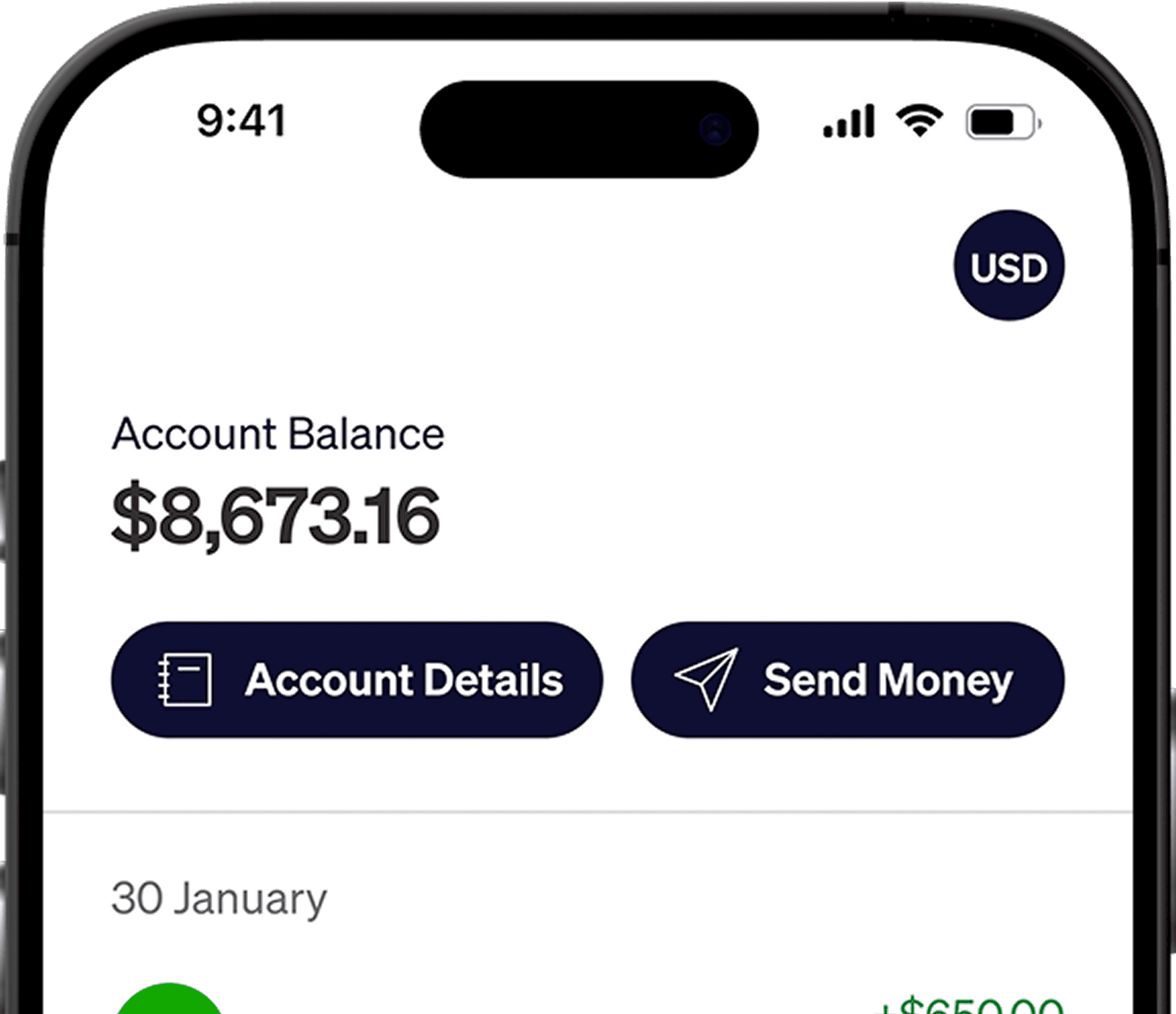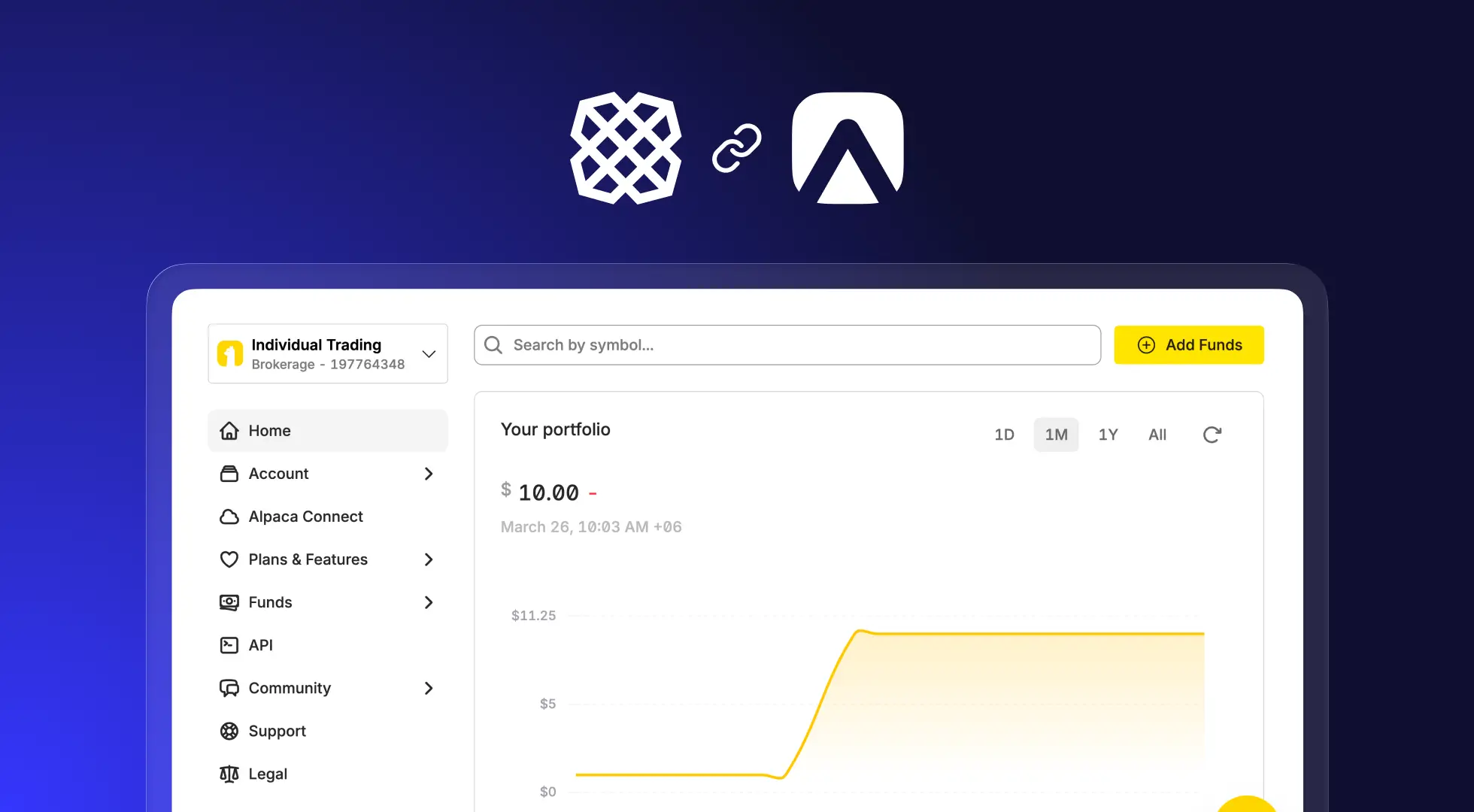




You can now link your Elevate Pay USD account to your Alpaca account in minutes.
Using Plaid allows instant verification so you can fund your Alpaca account faster and start investing without waiting for micro-deposits.
In our previous guide, How to Open an Individual Alpaca Trading Account from Bangladesh or Pakistan, we explained how to create your Alpaca account. If your account is already open, the next step is funding it.
Linking your account using Plaid is quicker, easier, and verifies your account instantly. Below is a simple step-by-step guide to connect Elevate Pay to Alpaca using Plaid and deposit funds.
Step 1: Initiate the Transfer
Start from inside your Alpaca dashboard.
Log in to your Alpaca account.
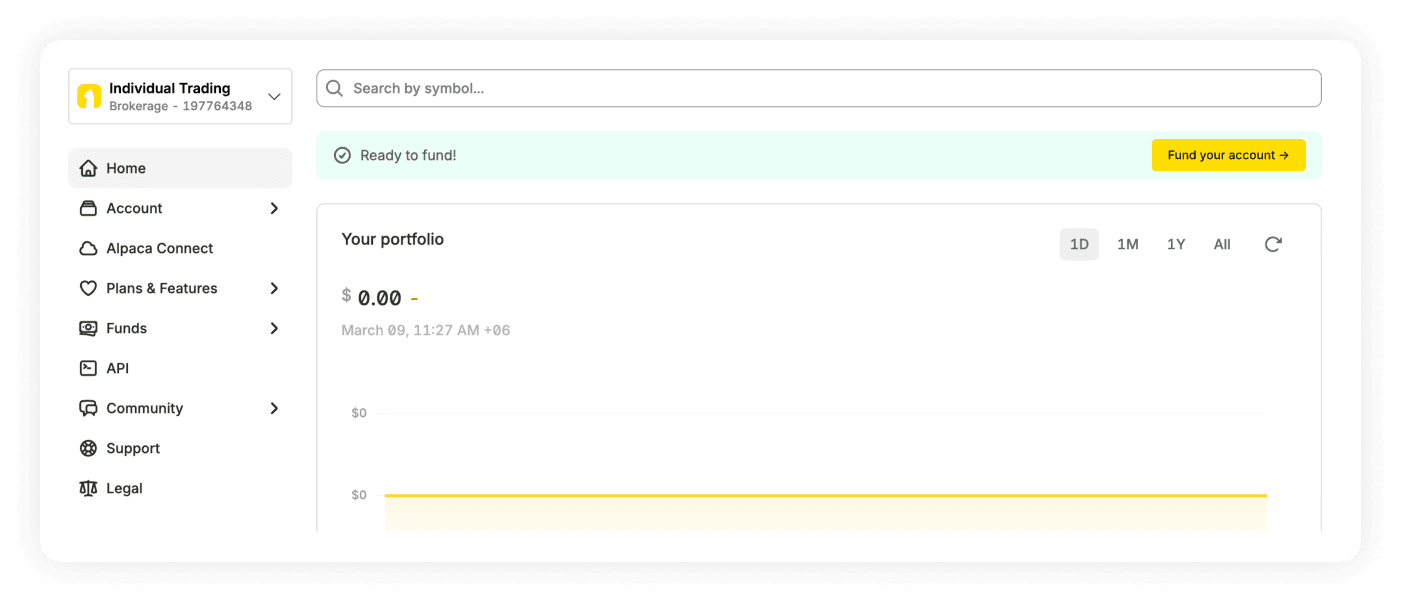
From your home dashboard, click on the yellow Fund your account button at the top right.
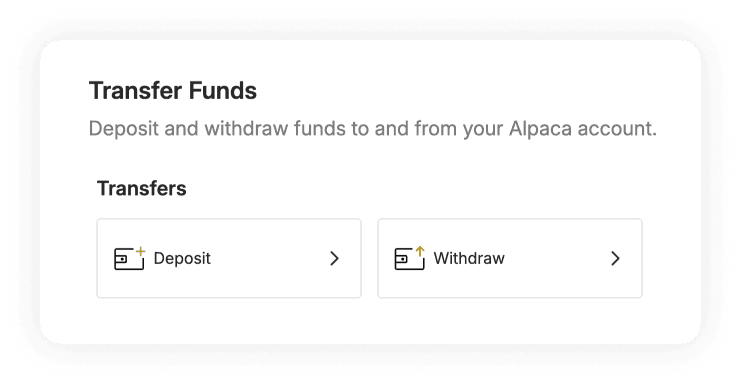
Under the Transfer Funds menu, select Deposit to initiate moving funds into your Alpaca account.
Step 2: Select Your Transfer Method
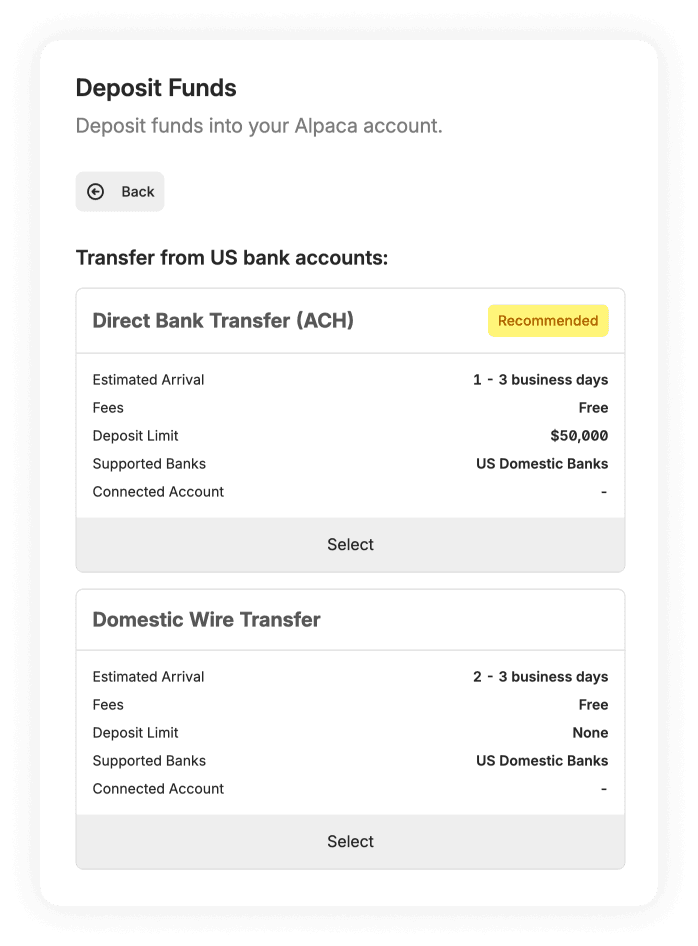
Alpaca will present options for transferring from US bank accounts. Select the recommended option: Direct Bank Transfer (ACH).
A Plaid Connection screen will appear, noting that your bank account needs to match the name on your Alpaca brokerage account.
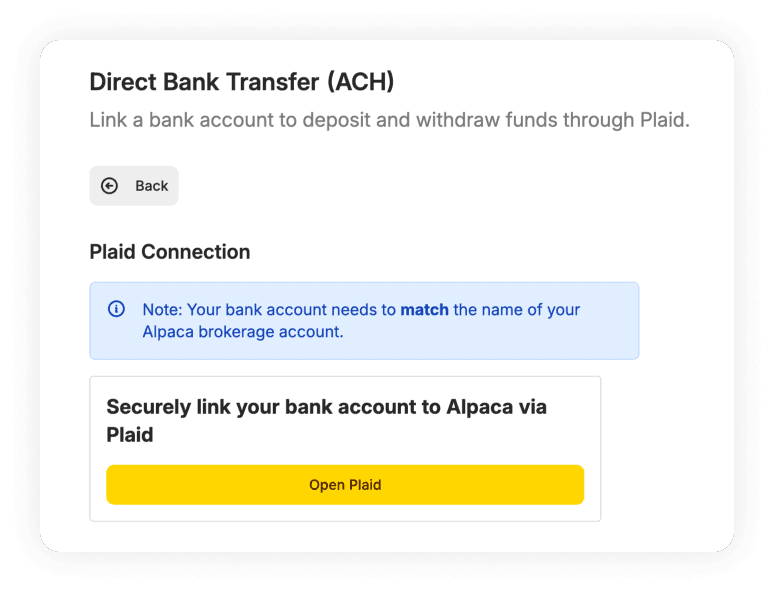
Click the yellow Open Plaid button to securely link your bank account.
Step 3: Verify via Plaid
This is the fastest part of the process. Instead of waiting 1-2 days for micro-deposits, Plaid verifies your account instantly.
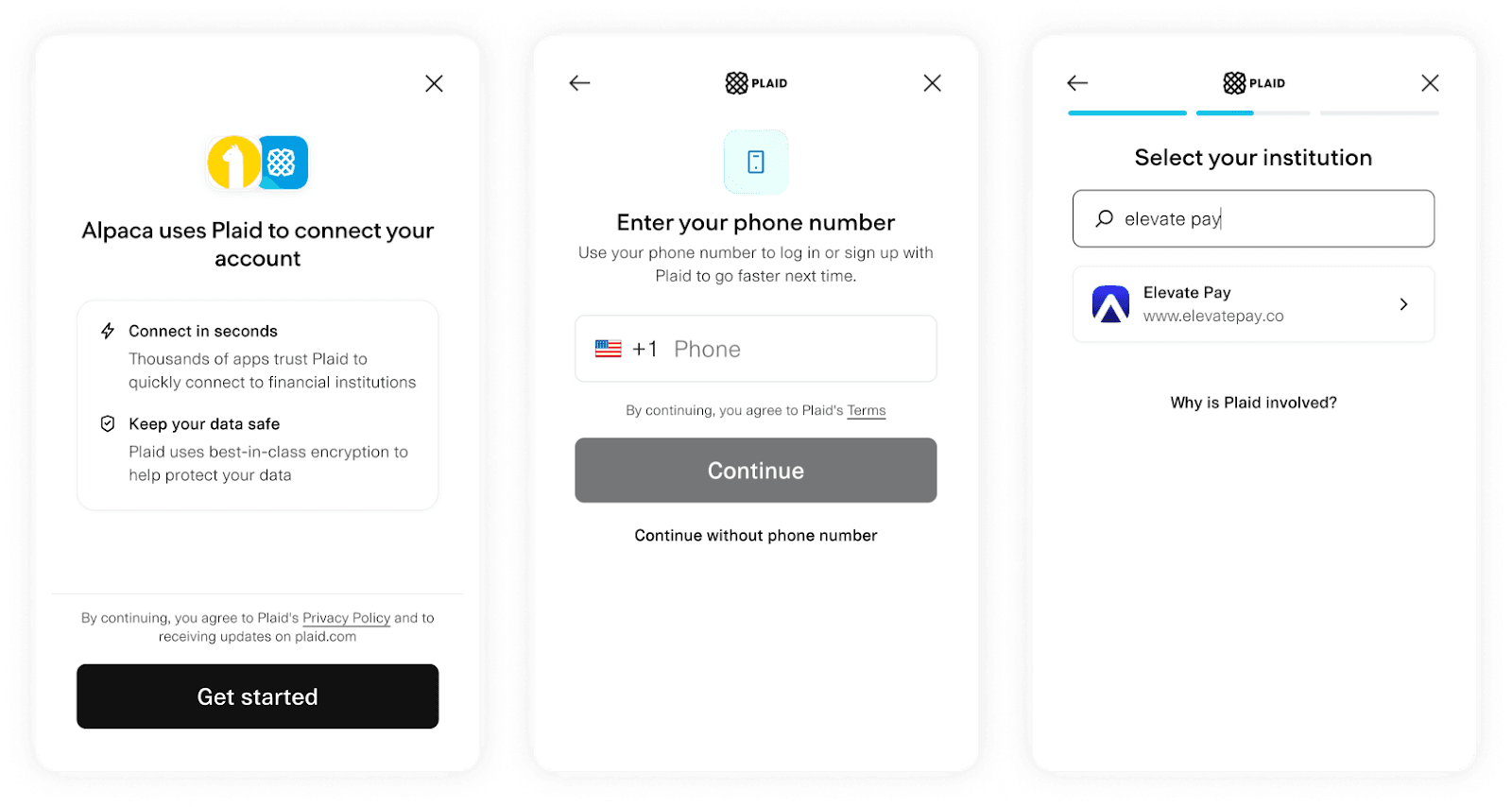
When the Plaid window opens, click Get started.
You have the option to enter your phone number to log in or sign up with Plaid, or you can simply click "Continue without phone number".
In the search bar under "Select your institution," type and select Elevate Pay.
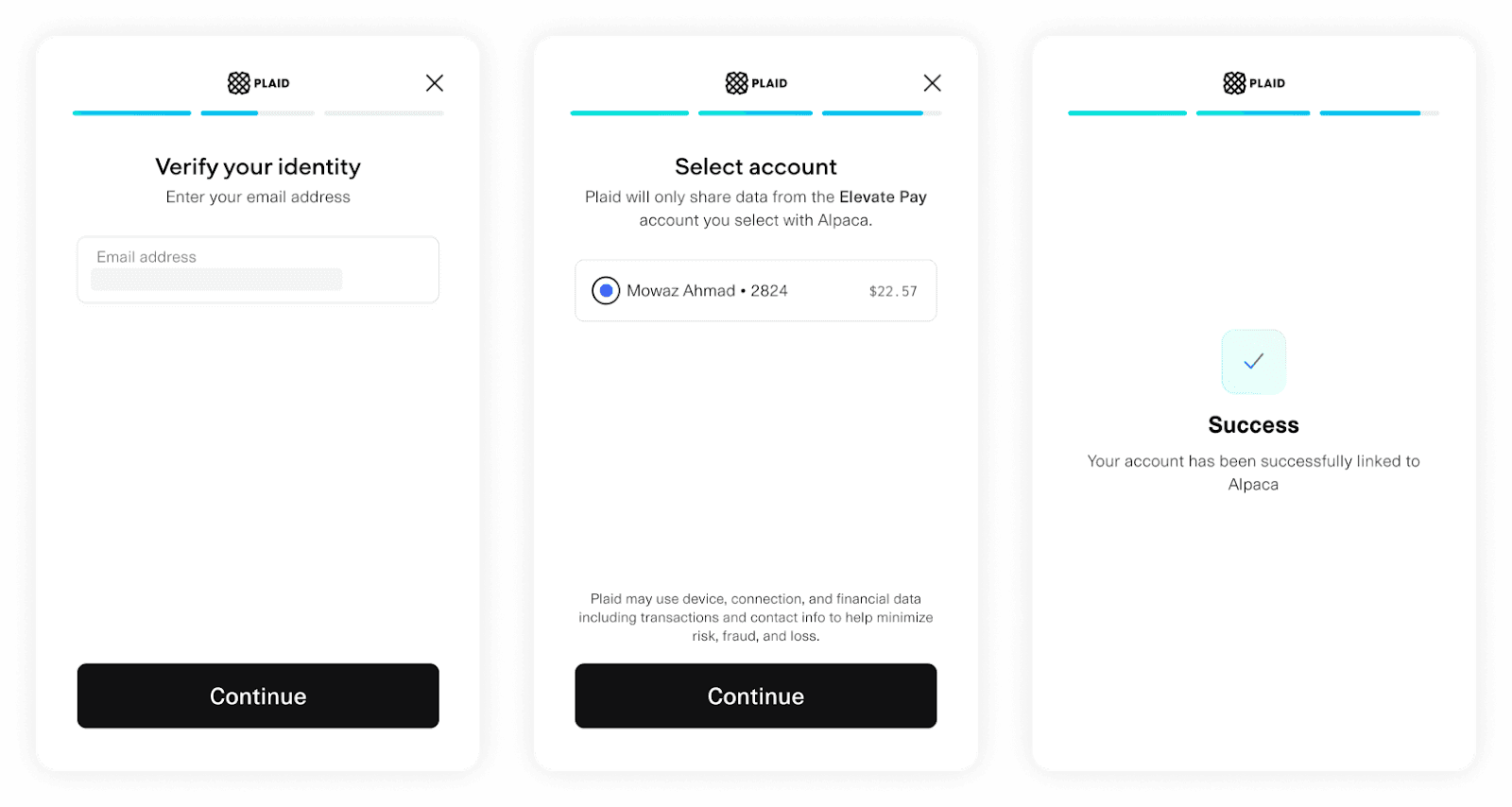
To verify your identity, enter the email address linked to your Elevate Pay account and hit Continue.
Select your specific Elevate Pay account from the list and click Continue.
You should see a Success message confirming that your account has been successfully linked to Alpaca.
Step 4: Deposit Your Funds
Now you're ready to transfer money to Alpaca.
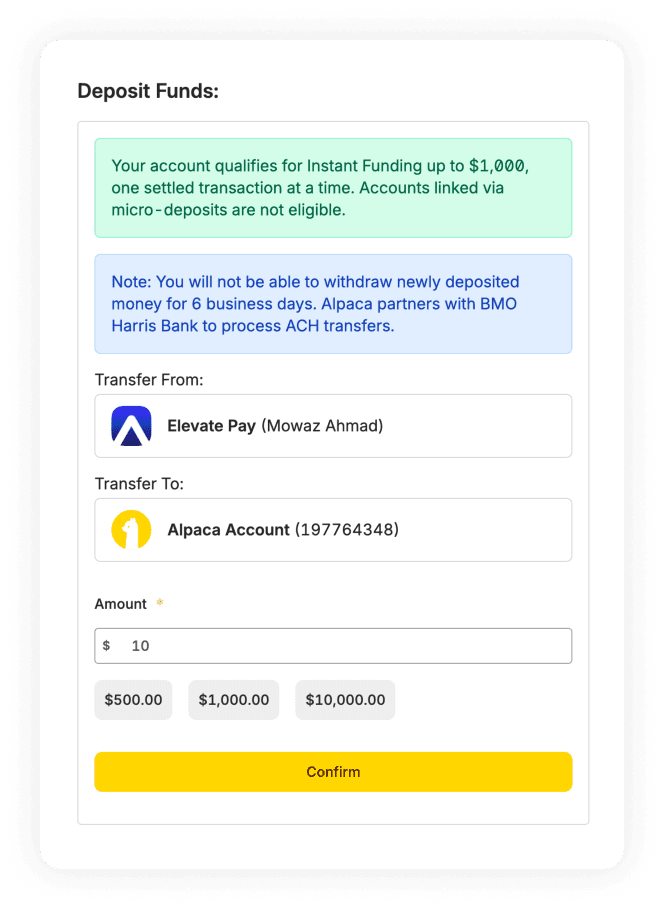
On the Deposit Funds screen, confirm that the "Transfer From" is your linked Elevate Pay account and the "Transfer To" is your Alpaca Account.
Enter the amount you wish to transfer in the Amount field.
Click the yellow Confirm button.
Step 5: Track Your Transfer
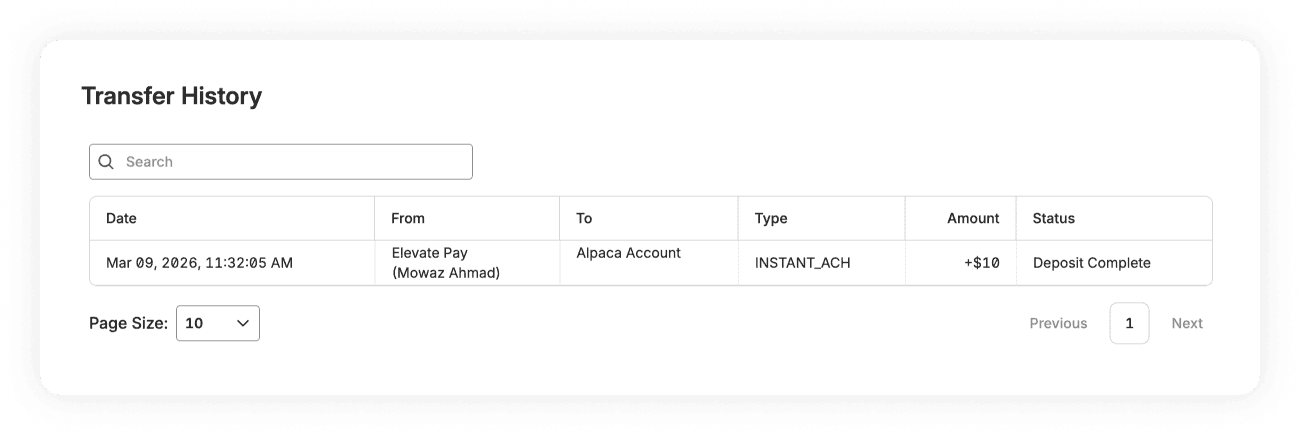
You can track your deposit under the Transfer History tab.
The transfer will appear with the type "INSTANT_ACH", and the status will show as Deposit Complete once the funds have successfully moved from your Elevate Pay account to Alpaca.
Once your funds settle, you're ready to invest.
With your Alpaca account funded, you gain access to U.S. and global markets. You can invest in individual companies or diversify through ETFs depending on your goals. The connection between Elevate Pay and Alpaca makes it simple to move your USD earnings directly into long-term investments.
Disclaimer: This article is for informational purposes only and does not constitute financial advice. All investments involve risk, including the potential loss of principal. Please conduct your own research before making investment decisions.


Recent Articles








DO MORE WITH ELEVATE PAY
Transfer money with Elevate Pay with low fees and competitive FX rates. Our users love us for transparency, security and more.